

PayPal Payments
Piano integrates the PayPal Commerce Platform in order to provide multiple payment methods, leveraging the latest REST APIs and PayPal Vaulting. This new version supports recurring card payments (Advanced Credit and Debit Cards), PayPal, and Venmo, as well as enables clients to easily authenticate in the Piano dashboard or sign up for a new PayPal account.
Additional note: Merchants can automatically transact one-off payments as soon as the automated sign-up/KYC process is completed. In order to run recurring transactions, reference transactions will be enabled by PayPal automatically on all successfully onboarded clients through Piano. This version of PayPal uses PayPal Vault as such PayPal payments are processed using vaultID instead of billing agreement ID.
Please note, that all billing should take place in Piano and you shouldn't be charging users directly via PayPal's own subscription options described here.
Merchant Requirements
PayPal vaulting support is now fully rolled out and multiple countries are supported for PayPal payment method on this new integration. The legacy PayPal Express checkout is no longer recommended to be used.
Supported Countries
For this payment provider, Piano supports the following countries:
|
Supported Countries |
|---|
|
Australia |
|
Austria |
|
Belgium |
|
Bulgaria |
|
Canada |
|
Cyprus |
|
Czech Republic |
|
Denmark |
|
Estonia |
|
Finland |
|
France |
|
Germany |
|
Hungary |
|
Ireland |
|
Italy |
|
Latvia |
|
Liechtenstein |
|
Lithuania |
|
Luxembourg |
|
Malta |
|
Netherlands |
|
Norway |
|
Poland |
|
Portugal |
|
Romania |
|
Slovakia |
|
Slovenia |
|
Spain |
|
Sweden |
|
United Kingdom |
|
United States |
Please note outside of the US, only the PayPal method is available at this time.
Supported Currency
Generally supported currencies by PayPal are listed here.
|
Supported Currencies |
||||
|---|---|---|---|---|
|
AED |
ARS |
AUD |
BGN |
BRL |
|
CAD |
CHF |
CLP |
CNY |
COP |
|
CZK |
DKK |
EUR |
GBP |
HKD |
|
HRK |
HUF |
IDR |
ILS |
INR |
|
JPY |
KRW |
MXN |
MYR |
NIO |
|
NOK |
NZD |
PEN |
PHP |
PLN |
|
PYG |
RON |
RSD |
RUB |
SEK |
|
SGD |
THB |
TRY |
TWD |
USD |
|
|
|
ZAR |
|
|
Supported Payment Methods
Piano supports the following payment methods for this payment provider:
|
Payment method name |
Are renewals supported? |
||||||||||||
|---|---|---|---|---|---|---|---|---|---|---|---|---|---|
|
PayPal |
Yes |
||||||||||||
|
Venmo* |
Yes |
||||||||||||
|
Advanced Credit and Debit Cards* |
Yes |
*Venmo and Advanced Credit and Debit Cards are limited to the US only.
It has been identified that the Venmo button is not currently rendering on some versions of iOS and iPhones (versions confirmed: iOS 17.2.1, iPhone 11 and iOS 16.6.1, iPhone 14). This may mean that some users may see the PayPal button only. The problem has been reported to PayPal for further solutioning.
Supported Features and Functionality
|
Feature |
PayPal |
Venmo |
Advanced Credit and Debit Cards |
|
Connection and configuration |
|
||
|
Trials and promo descriptors |
NA |
NA |
NA |
|
Automatic card updates (cards only) |
NA |
NA |
NA |
|
Import endpoint: Migration support |
Yes* |
Pending |
Pending |
|
Grace and Retry |
Yes |
Yes |
Pending |
|
Checkout and Billing |
|
|
|
|
Purchase with a new payment method |
Yes |
Yes |
Yes |
|
Purchase with saved payment method |
Yes |
Yes |
Yes |
|
Remember my payment method |
Yes |
Yes |
Yes |
|
Tax support (Taxjar, Avalara, OneSource) |
Yes |
Yes |
Yes |
|
Promotions (free / discounted) |
Yes |
Yes |
Yes |
|
Trials (free / paid) |
Yes |
Yes |
Yes |
|
Support 3DS (cards only) |
NA |
NA |
Pending |
|
Email notifications |
Yes |
Yes |
Yes |
|
Auto-renewal / Free renewal |
Yes |
Yes |
Yes |
|
Manual renewal flow |
Yes |
Yes |
Yes |
|
MyAccount |
|
|
|
|
Display UPI in Payment methods section |
Yes |
Yes |
Yes |
|
Tax Support (Taxjar, Avalara, OneSource) |
Yes |
Yes |
Yes |
|
History events |
Yes |
Yes |
Yes |
|
Inquiries support |
Yes |
Yes |
Yes |
|
Cancel subscription |
Yes |
Yes |
Yes |
|
Vouchers |
Yes |
Yes |
Yes |
|
Support 3DS for card payments (Upgrades, Manual Renewal) |
NA |
NA |
Pending |
|
Support 3DS for adding new card payments (Adding payment, Update renewal method) |
NA |
NA |
Pending |
|
Add payment method |
Yes |
Yes |
Yes |
|
Delete payment instrument |
Yes |
Yes |
Yes |
|
Update renewal payment method with new payment method |
Yes |
Yes |
Yes |
|
Update renewal payment method with saved payment method |
Yes |
Yes |
Yes |
|
Upgrade |
Yes |
Yes |
Yes |
|
Manual renewal flow (including 3ds) |
Yes |
Yes |
Pending |
|
MyAccount: Cancel and Refund |
Yes |
Yes |
Yes |
|
Publisher Dashboard: Reports and logs |
|||
|
New Activity Report |
Yes |
Yes |
Yes |
|
Revenue Report |
Yes |
Yes |
Yes |
|
Transactions Log: Statuses (completed, refunded, pending) |
Yes |
Yes |
Yes |
|
Transactions Log: Latest Revenue Recognition List |
Yes |
Yes |
Yes |
|
Transactions Log: Latest Revenue Recognition Summary |
Yes |
Yes |
Yes |
|
Publisher Dashboard: User Profile |
|||
|
Overview (display data) |
Yes |
Yes |
Yes |
|
Subscription Details: Cancel |
Yes |
Yes |
Yes |
|
Subscription Details: Cancel & Refund |
Yes |
Yes |
Yes |
|
Subscription Details: Change Billing date |
Yes |
Yes |
Yes |
|
Subscription Details: Update Renewal Method |
Yes |
Yes |
Yes |
|
History events |
Yes |
Yes |
Yes |
|
Transactions: Refund |
Yes |
Yes |
Yes |
|
Inquires support |
Yes |
Yes |
Yes |
|
Subscription Details: Upgrade |
Yes |
Yes |
Yes |
|
Vouchers: Refund & Revoke |
Yes |
Yes |
Yes |
|
Wallet: Add payment instrument |
NA |
NA |
Yes |
|
Wallet: 3DS for adding cards |
NA |
NA |
Pending |
|
Wallet: Apply to all active subscriptions |
NA |
NA |
Yes |
|
Wallet: Delete payment instrument |
Yes |
Yes |
Yes |
|
Wallet: Set as default |
NA |
Yes |
Yes |
|
Publisher Dashboard: Subscribe User |
|||
|
Purchase with a new payment method |
NA |
NA |
Yes |
|
Purchase with saved payment method |
Yes |
Yes |
Yes |
|
Tax Support (Taxjar, Avalara, OneSource) |
Yes |
Yes |
Yes |
|
Apply this payment method to all active subscriptions |
Yes |
Yes |
Yes |
|
Checkout: Frictionless |
NA |
NA |
NA |
|
Transactions Log: Status (charged back/disputed) |
Yes |
Yes |
Yes |
|
Passive Churn prevention logic |
Yes - Advanced support |
Yes - Advanced support |
Yes - Advanced support |
*For more information about the payment token import please visit this link.
Passive Churn Prevention
It's crucial to understand how the various error codes that may arise during a payment failure are handled by the Passive Churn Prevention feature. These error codes provide insights into why a renewal attempt may have failed, enabling you to take appropriate actions to prevent churn. This section details the specific error codes encountered during a payment failure and their mapping to a decline reason.
|
Decline reason |
Error codes |
|---|---|
|
Suspected fraud |
"name":"UNPROCESSABLE_ENTITY" "issue":"PAYEE_BLOCKED_TRANSACTION" |
|
Insufficient funds |
"name":"UNPROCESSABLE_ENTITY" "issue":"PAYER_CANNOT_PAY" |
|
Expired card |
"name":"UNPROCESSABLE_ENTITY" "issue":"CARD_EXPIRED" "issue":"PAYER_ACCOUNT_LOCKED_OR_CLOSED" "issue":"AGREEMENT_ALREADY_CANCELLED" |
|
Card is stolen or lost |
- |
|
Limit exceeded |
"name":"UNPROCESSABLE_ENTITY" "issue":"TRANSACTION_LIMIT_EXCEEDED" |
|
Network failure |
"name":"INTERNAL_SERVER_ERROR" |
|
3DS failure |
- |
|
Call issuer |
"name":"UNPROCESSABLE_ENTITY" "issue":"INSTRUMENT_DECLINED" |
|
Do not honor |
"name":"UNPROCESSABLE_ENTITY" "issue":"REDIRECT_PAYER_FOR_ALTERNATE_FUNDING" "issue":"TRANSACTION_REFUSED" |
|
Everything else |
All error codes not listed above |
How to enable the PayPal Commerce Platform with Piano
In the Piano dashboard, simply click Edit Business → Payment Provider → PayPal (Add New).
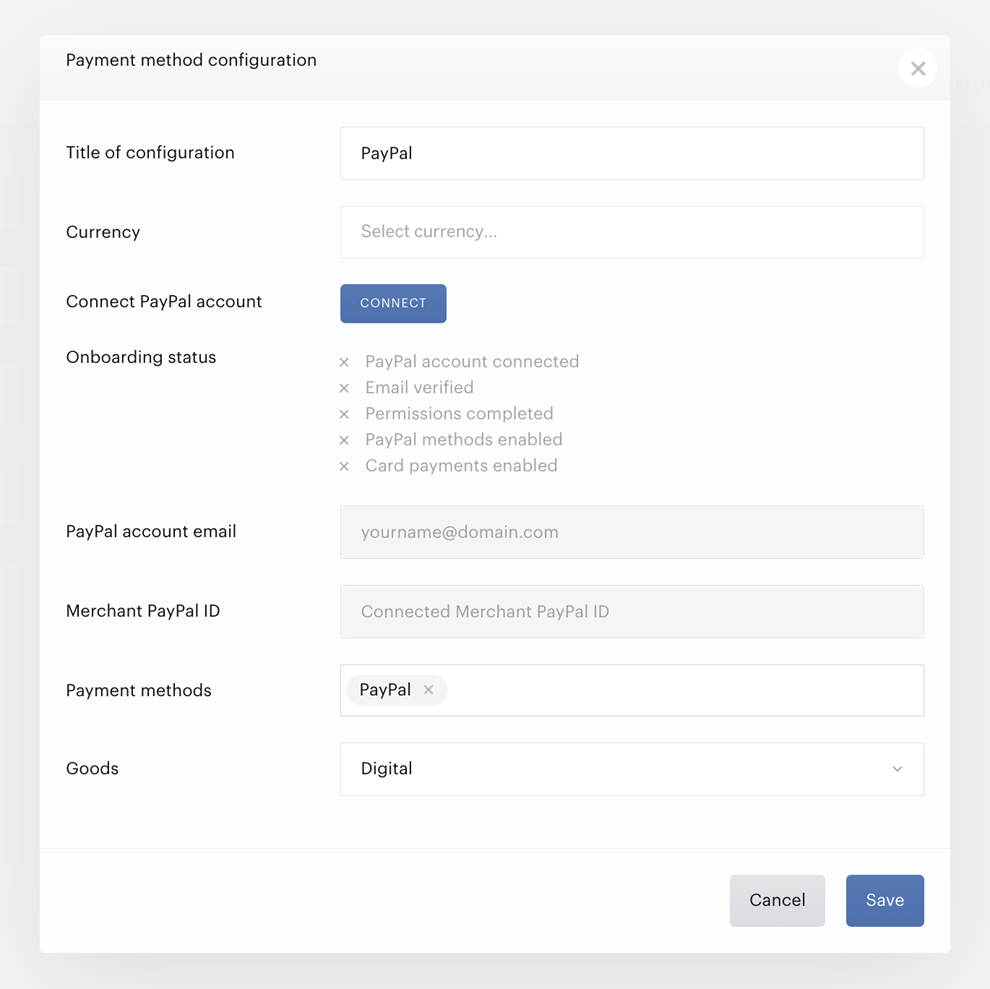
First, select the currency USD and then click the Connect button to connect your PayPal account.
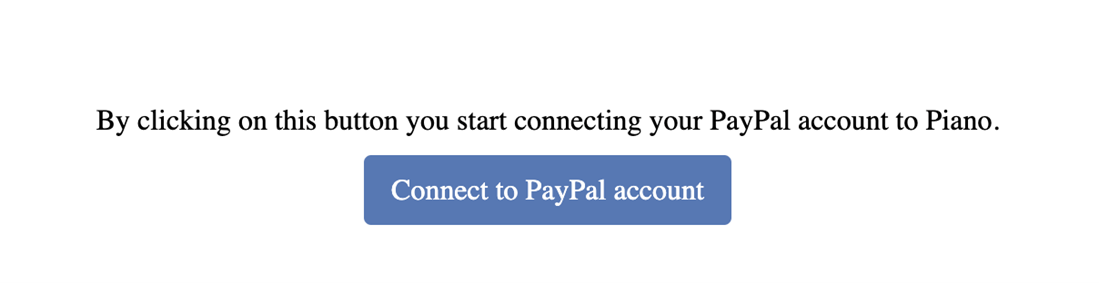
This will trigger the PayPal onboarding flow, where you can either authenticate using your existing account or sign up for a new PayPal Business account. (If you’re migrating from the legacy PayPal Express Checkout version use the same PayPal account).
Follow the instructions to log in if you have an existing account or provide information to open a new account.
As part of the onboarding process, email confirmation will be required.
Once you provide all the information in the onboarding flow, you will see this PayPal screen, please make sure to click on the Go back to… button.
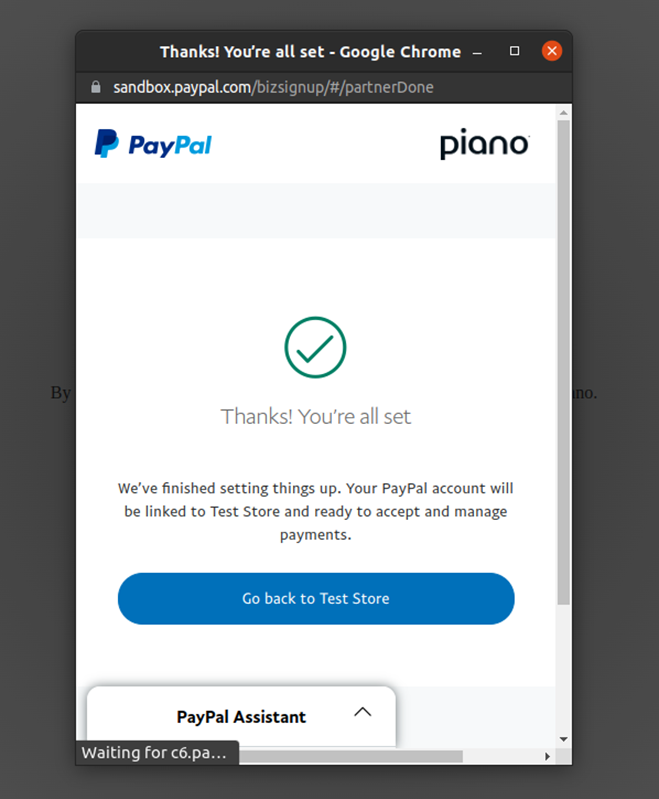
IMPORTANT:
It is important that you do not close the window but instead click the "Go back to" button. At this step, a call is initiated from PayPal to Piano, which sends the result of the onboarding back to us.
While PayPal will send a webhook at a later stage, to avoid onboarding errors, it is important to click the button. Once you return, make sure to save your configuration settings in Piano. PayPal will start sending webhooks with your PayPal merchant ID and AID. If you fail to save your configuration, Piano will not be able to process this webhook properly and will not write updates to the database. The webhook is sent several times intermittently.
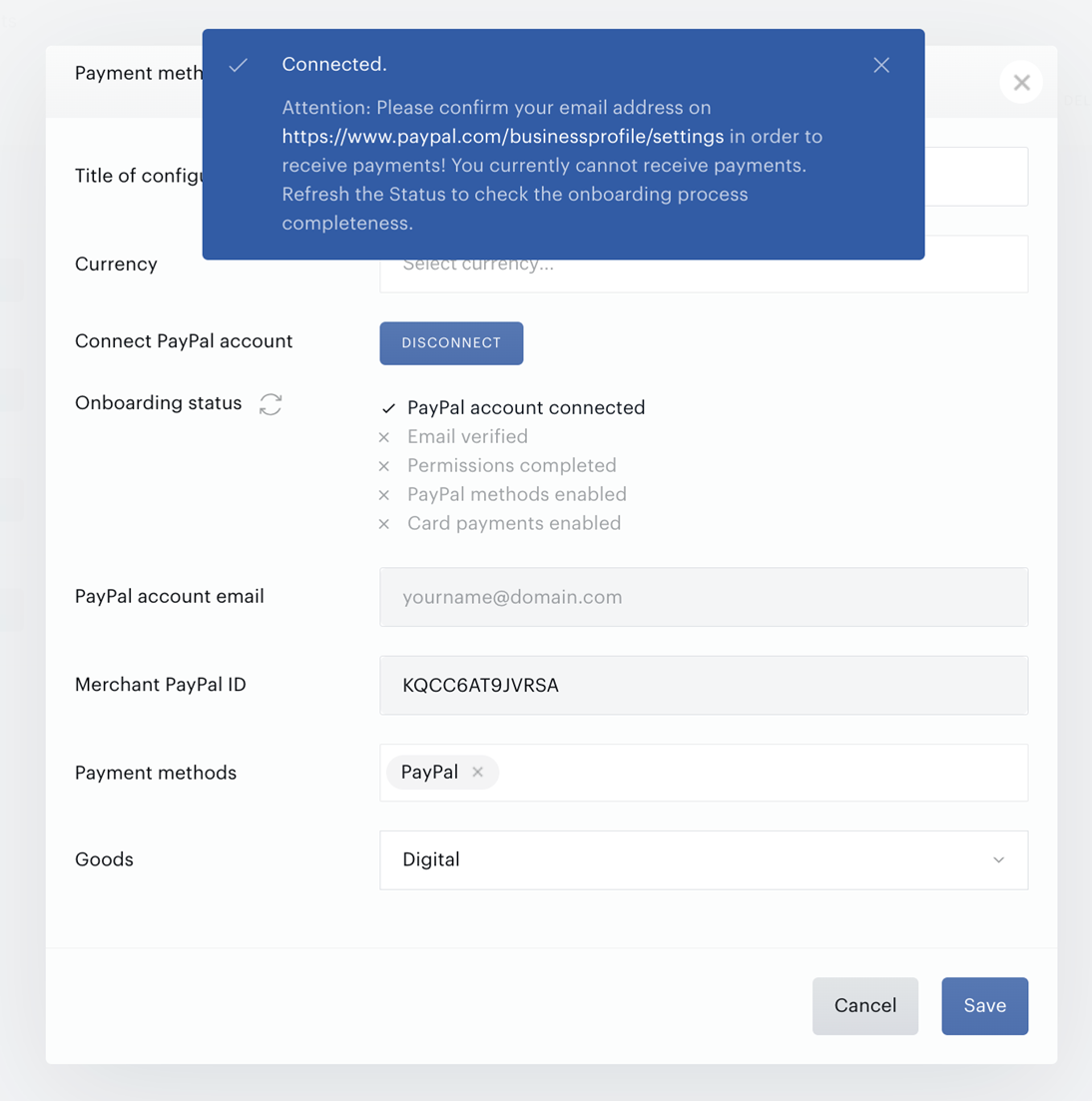
To check the status of your account, click the icon highlighted below to fetch an update.
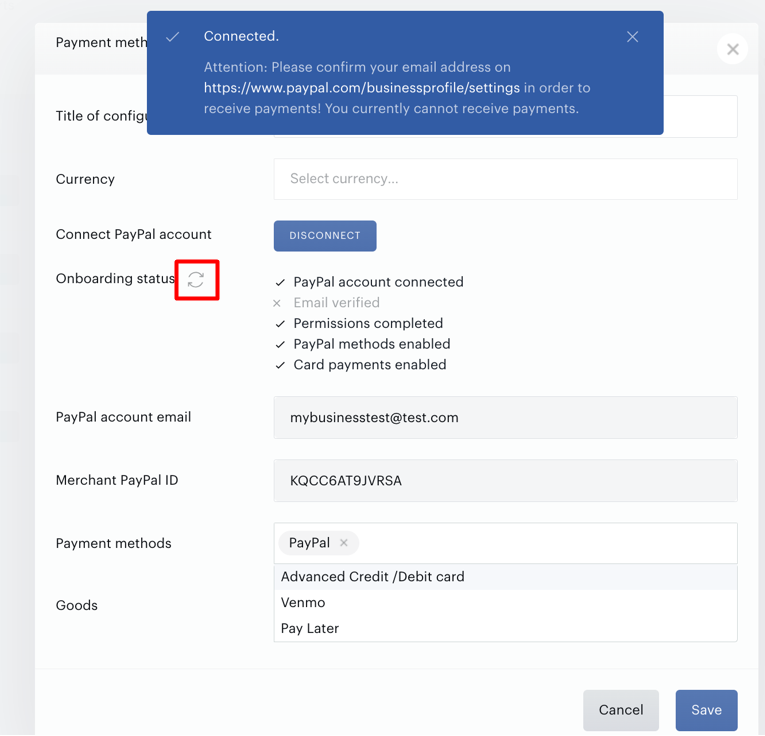
You can select which Payment methods you would like to offer in the checkout. Please note, that one-off payments are immediately available, and please ensure Card payments are enabled before offering them to your users.
Finally, specify the type of Goods - Digital or Physical - you’ll be selling.
Template Changes
For PayPal, to ensure the latest code is loaded in the Checkout and My Account, system template changes are required. There are a few ways to update your templates;
-
The easiest is to reset to default if you haven’t stylized the templates.
-
If you did, then you can use the Compare code feature and compare the code between the default version and your current version, and carry over any new code line by line.
For My Account, you need to update the following templates:
Manage → Templates → My Account → My Account Wallet Components and My Account Library Components.
For Checkout, the following template needs to be updated:
Manage → Templates → System → Payment Components.
PayPal Checkout Example
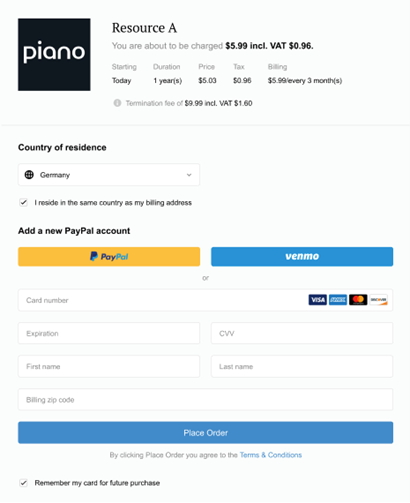
The default checkout template when PayPal, ACDC, and Venmo methods are enabled in the PayPal configuration in Piano can be seen below. Clients can specify which methods to use.
Testing
Please see the test cards available on the PayPal docs. Please note, that Venmo cannot be tested in the PayPal sandbox, and production testing is required.
Frequently Asked Questions (FAQ)
Q: How can I use the new PayPal if I currently use the PayPal Express Checkout version?
A: PayPal vaulting support is now fully rolled out and multiple countries are supported for PayPal payment method on this new integration. Ensure that you use the same PayPal account to connect your configuration. Once you’ve configured the new PayPal version, you can hide the previous version from the checkout and MyAccount, and start using the latest version with additional methods.
In order to hide the payment method in checkout, it is enough just to specify this in the payment provider configuration settings. But on the My Account, the provider is not hidden; for this, you can use the following guide.
Once you’ve hidden your PayPal Express checkout version, please send a request to Piano Support for your billing agreements to be ported over to be used with the new PayPal version.
The transition from PayPal Express to PayPal Standard does not require a new token, as both flows can use the same PayPal Payment Token API. For more details, refer to PayPal’s documentation on Payment Tokens API.
While PayPal Express checkout using NVPSOAP API is deprecated, billing agreements can be migrated to new PayPal Vault IDs.
Q: Why can’t I refund a user (for PayPal Express Checkout integration)?
A: PayPal Express Checkout allows refunds only for transactions that were made in the past 6 months.
Q: How to update my PayPal account settings to be able to connect the account in the Piano configuration?
A: If you encounter a "Something went wrong" error when attempting to connect your Sandbox PayPal account in the Piano configuration, it could be due to existing consents in your PayPal account that need to be revoked. To resolve this issue, follow these steps:
-
Log in to Your PayPal Sandbox Account:
-
Use your sandbox account credentials to access your PayPal business profile.
-
-
Access the Consent Management Page:
-
Review Existing Consents:
-
Look for any entries related to your partner store or consents provided during previous integrations.
-
-
Delete the Consent Entry:
-
Click the Delete icon next to the relevant consent to revoke it.
-
-
Reattempt the Connection in Piano:
-
After revoking the consent, go back to the Piano dashboard and try re-connecting your PayPal account.
-
How to integrate PayPal Express Checkout with Piano
Please note, that this version has been deprecated. Any new clients should use the new PayPal integration version above to process payments via the PayPal Commerce Platform.
Before you integrate your PayPal Express Checkout account with Piano, make sure that Reference transactions are enabled for your PayPal account.
In the Piano dashboard, simply click Edit Business→Payment Provider→PayPal Express Checkout (Add New).
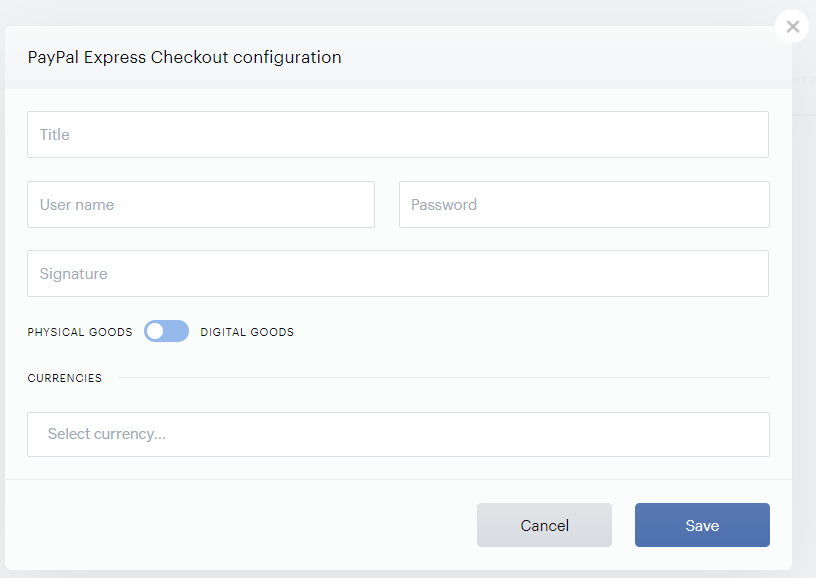
Enter your payment provider credentials from your PayPal dashboard in the available fields User name, Password and Signature, and pick a title for your configuration.
Please refer to this documentation on how to obtain your PayPal API Signature.
Switch the toggle to Physical goods. Enter all the currency options you would like to be available to customers, and click Save.