
When adding or updating payment methods in My Account, it is important to consider the requirements of 3DS verification, especially for EU applications. Strong Customer Authentication (SCA) rules under PSD2 may require an additional 3D Secure (3DS) verification before a card can be used for subscription renewals. If the verification doesn't complete successfully, renewals can fail and the subscription may expire.
By default, the options Set a payment method as default and Apply to all active subscriptions are disabled for all EU environment apps.
It is strongly recommended that the options Set a payment method as default and Apply to all active subscriptions remain removed from the templates and that the end-user goes to the Library tab in My Account and updates the renewal payment method for their active subscription only.
Why card updates can fail (SCA / PSD2 and 3DS)
For many banks (especially in the EU) subscription payments and card changes may require 3DS authentication. During the update process, the subscriber may be asked to complete a bank challenge (banking app approval, SMS code, etc.). In some implementations, this is triggered by a small verification transaction (commonly around $1 or the equivalent amount in other currencies) used to confirm the card and satisfy 3DS requirements.
If the subscriber closes the window, declines the challenge, or their bank blocks the verification, the new card may not be saved or may not be usable for renewals.
Template changes for My Account (all providers)
-
In the My Account Wallet Components template find the
wallet_list.shtmlsection.
This part of the code: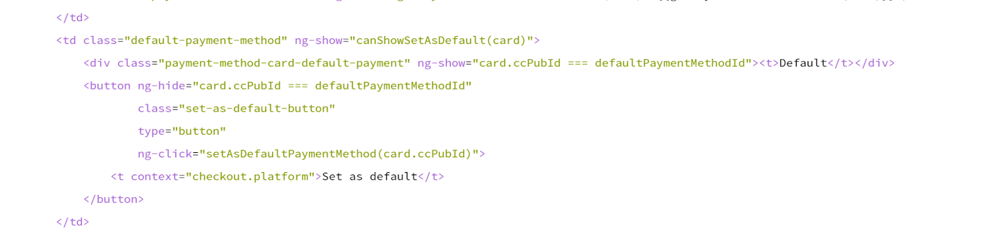
Should look like this:
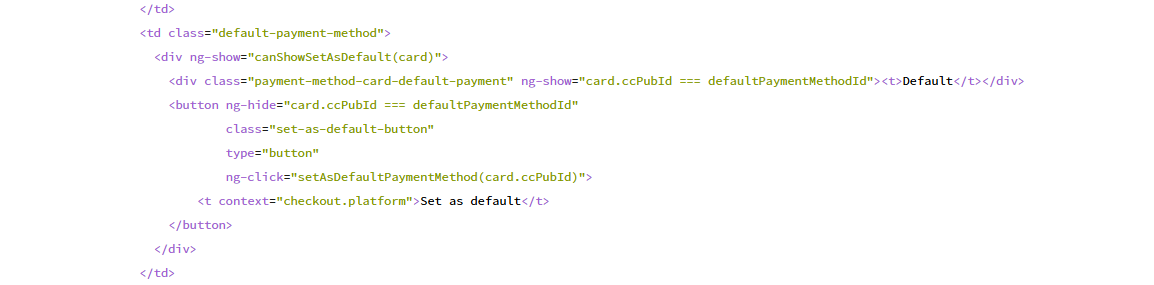
HTML:
HTML<td class="default-payment-method"> <div ng-show="canShowSetAsDefault(card)"> <div class="payment-method-card-default-payment" ng-show="card.ccPubId === defaultPaymentMethodId" > <t>Default</t> </div> <button ng-hide="card.ccPubId === defaultPaymentMethodId" class="set-as-default-button" type="button" ng-click="setAsDefaultPaymentMethod(card.ccPubId)" > <t context="checkout.platform">Set as default</t> </button> </div> </td> -
In the My Account Wallet Components template find the
wallet_item.shtmlsection.This part of the code:

Should look like this:
HTML:
HTML<div ng-if="getVisibilityOfApply()" class="apply-this-method-checkbox" > <input type="checkbox" id="default-payment-method" ng-model="card.needToApplyDefaultPaymentMethod" /> <label for="default-payment-method"> <t>Apply this payment method to all active subscriptions</t> </label> </div>
These changes will hide the "Set as default" option in the My Account Payment Methods/Cards tab, and the option "Apply to all active subscriptions" in the Payment Methods/Cards tab under the section "Add a new card".
To hide the "Set as default" option in My Account's "Update renewal payment method" menu, you will need to make the following changes based on the payment provider in use.
In the My Account Wallet Components template, find the div with the class apply-this-method-checkbox and add ng-if="getVisibilityOfApply()".
For example, for Datatrans Apple Pay, the updated template would look like this:
<div
  ng-if="getVisibilityOfApply()"
  class="apply-this-method-checkbox"
>
  <input
    type="checkbox"
    id="default-payment-method"
    ng-model="data.needToApplyDefaultPaymentMethod"
  />

  <label for="default-payment-method">
    <t>Apply this payment method to all active subscriptions</t>
  </label>
</div>
This change is only needed for the following payment providers: Datatrans Apple Pay, Datatrans Google Pay, Datatrans PayPal, Datatrans Twint, GMO AU, GMO Docomo, and GMO Softbank. For other providers, no template changes are needed.
Template Changes in Checkout for Braintree
In the Payment Components template find the cc-form-component.html section.
1) This part of the code:

Should look like this:

HTML:
<td
  class="payment-method-card-cell payment-method-card-cell-default-payment"
  ng-show="defaultPaymentMethodEnabled"
>
  <div
    class="payment-method-card-default-payment"
    ng-show="method.id === cc.defaultPaymentMethodId"
  >
    <t>Default</t>
  </div>
</td>
2) And this part of the code:
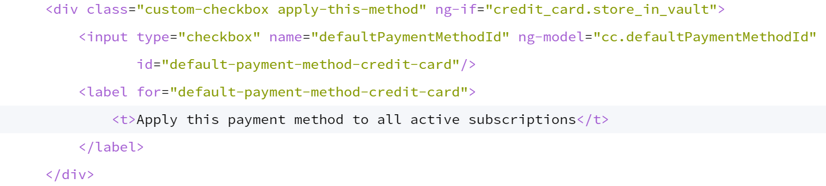
Should look like this:

HTML:
<div
class="custom-checkbox apply-this-method"
ng-if="credit_card.store_in_vault && defaultPaymentMethodEnabled"
>
<input
type="checkbox"
name="defaultPaymentMethodId"
ng-model="cc.defaultPaymentMethodId"
id="default-payment-method-credit-card"
/>
<label for="default-payment-method-credit-card">
<t>Apply this payment method to all active subscriptions</t>
</label>
</div>
These changes will hide the "Set as default" and "Apply to all active subscriptions" functionalities from checkout and only for Braintree.
Template Changes in Checkout for Other Payment Providers
The approach for Braintree can also be applied to other providers. For more details, please reach out to the Piano Support Team at support@piano.io.
Recommended method (EU / PSD2): Updating a Payment Method via the Subscription Page
To ensure the new payment method is linked to the active subscription and triggers the required 3DS authentication, subscribers should update the renewal payment method from the subscription management flow (not from Wallet/Cards alone). In this flow, the subscriber does not need to set a "default" card for renewals, the key requirement is that the new card is explicitly applied to the subscription.
To update a payment method for an active subscription via My Account, follow these steps:
-
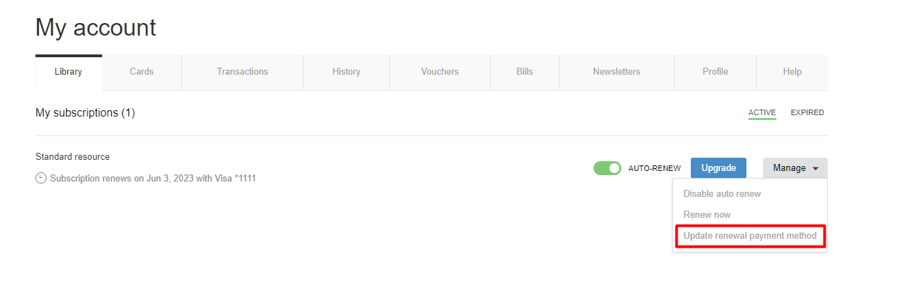
Log in to your account and navigate to the Library tab in My Account (depending on your site configuration).
-
Click on Manage, then click the "Update Renewal payment method" button.
-
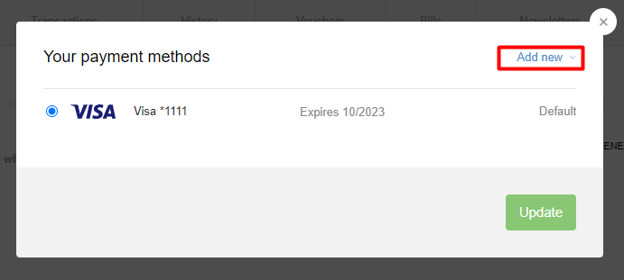
Click "Add a new card" if you'd like to add a new payment method.
-
Enter your card details, including the card number, expiration date, and security code.
-
Click on the "Add card" button.
-
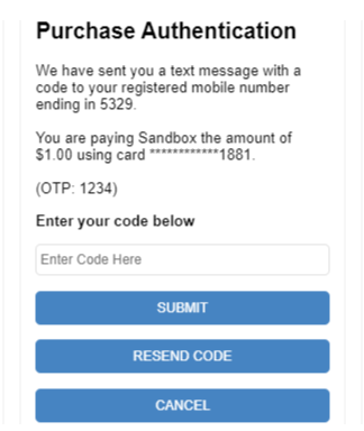
If prompted, complete the 3DS challenge (banking app approval, SMS code, etc.). A 3DS screen will appear with the authorization payment amount ($1 or the equivalent amount in other currencies) for verification (example below). Applicable only for 3DS-supported cards.
-
Once you have verified the payment, select the newly added card and click "Update" and your new payment method will be added to your account and linked to your active subscription.
It's recommended to remove the old or expired card afterward to avoid confusion and prevent future renewal attempts from using the wrong card (see Removing a Payment Method below).
Additional steps for Braintree
If you are using the Braintree payment provider, the following additional steps are needed after updating the payment method. These steps are applicable only for 3DS-supported cards.
-
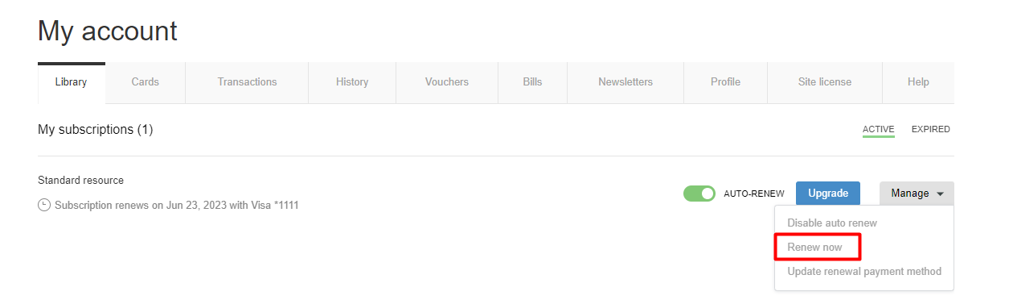
Once the new payment method is added, renew your active subscription by clicking on the "Renew now" button under the "Manage" section.
-
You will be shown a 3DS authorization screen (if your card issuer supports it) for the full subscription payment amount, which you need to confirm.
-
Your subscription should now be renewed using the newly added payment method.
More information about manual renewals is available here and here. This will help prevent payment renewal failures due to missing or incorrect 3DS authorization.
Note: You will need to update your payment method for each active subscription individually as per the steps described above.
Alternative method: Add a Card via Cards/Wallet and Apply to Subscriptions
If the subscriber cannot successfully update the card from My Account → Update renewal payment method (for example, due to authentication failures), the next best option is:
-
Go to My Account → Wallet (or Cards, depending on labeling).
-
Click Add card and enter the new card details.
-
Complete the 3DS verification (often a small verification charge such as $1 or the equivalent amount in other currencies).
-
Set the new card as the default payment method for all existing subscriptions (if your My Account UI provides this option).
This approach is commonly used to resolve scenarios where the subscription-level update flow errors out but the card can still be added and authenticated successfully.
If the Subscription Already Expired
If renewal attempts failed and the subscription has expired, updating the payment method may not reactivate the expired subscription automatically. In that case, the subscriber generally must purchase a new subscription using the updated card (and complete any required 3DS authentication).
In case of any payment failure related to an incorrect or missing 3DS Authorization, we recommend enabling also the Subscription reactivation flow, which enables users to continue their subscription after providing a 3DS authorization.
Troubleshooting Checklist for Subscribers
If the subscriber still can't update their card or receives authorization/authentication errors (often seen with processors such as Braintree), advise them to:
-
Ensure they complete the 3DS challenge (bank app approval or SMS code).
-
Try again and do not close the verification window until the process is finished.
-
Confirm the card details were saved successfully before leaving the page.
-
Contact their bank to confirm:
-
Online payments are enabled.
-
3DS challenges are allowed.
-
The verification transaction isn't being blocked.
-
-
Try a different card if the bank continues to decline the verification/authentication.
Removing a Payment Method
To remove a payment method from your account, follow these steps:
-
Log in to your account and navigate to the Payment Methods tab in My Account.
-
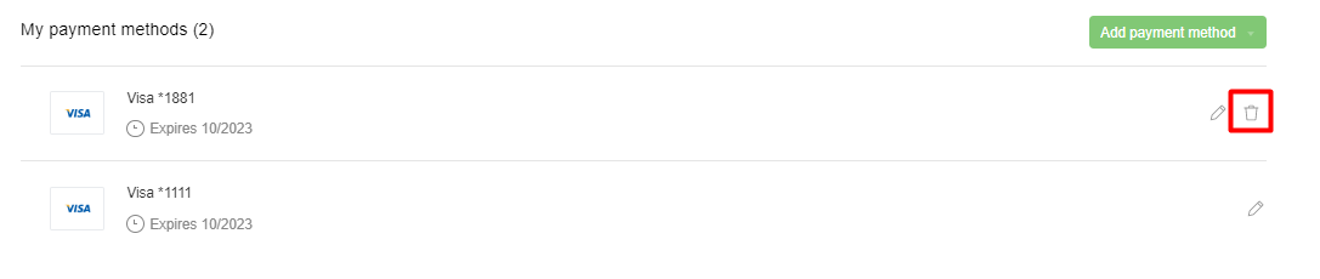
Find the payment method you want to remove and click on the "Delete" (trash icon) button.
-
A confirmation message will appear asking if you are sure you want to delete the payment method. Click on the "Yes" button.

-
The payment method will be removed from your account.
Note: If a payment method is linked to an active subscription, you will not be able to delete it until you have added a new payment method via the steps above.
Key Takeaways
-
SCA/PSD2 can require 3DS authentication during payment method updates.
-
For EU subscribers, the most reliable approach is updating via My Account → Manage → Update renewal payment method so the card is linked to the subscription.
-
If that fails, add the card via Wallet and complete the 3DS verification, then apply it to subscriptions if available.
-
If the subscription expired, the subscriber may need to repurchase.
-
Consider enabling the Subscription reactivation flow to help users recover from 3DS-related payment failures.