
Piano has developed a new way of handling payment options to allow for an external invoice flow (a.k.a. invoice payment method), check/cash payment flows, or other asynchronous payment flows. With these options, all of Subscription Management + Billing features continue to be available (terms, promotions, trials, etc.), as well as subscription data and billing being managed within Piano too, while payment gateway actions are handled externally using your own process and interface.
Supported Features and Functionality
Please click on the "Fullscreen" option below to enlarge the table to show all available payment method features.
|
Feature |
Supported? |
Details |
|
Import endpoint: Migration support |
Yes |
Piano can pre-generate user payment IDs for existing users or subscribers to allow 3rd party providers to manage payments and communicate back to Piano using such IDs. |
|
Grace and Retry |
Yes |
Retaining access for the payment retry window. Retrying failed payments needs to be handled by the provider. |
|
Checkout and Billing |
||
|
Purchase with a new payment method |
Yes |
Piano generates the callback/webhook; the provider is required to set up a redirect and handle the payment and method tokenization. |
|
Purchase with saved payment method |
Yes |
Purchases are allowed with a previously used invoice option in the checkout; it is required that you handle all webhooks accordingly and charge the payment method in your system. |
|
Remember my payment method |
Yes |
Piano stores the user payment method ID reference in its system; the provider is required to do method tokenization. |
|
Tax support (Taxjar, Avalara, OneSource) |
Yes |
|
|
Promotions (free / discounted) |
Partially* |
Piano generates a callback/webhook with the final amount; the provider is required to set up a redirect and handle the payment and method tokenization. In the case of a free initial period, it is optional to verify the method by the provider. If a promo code is used, currently it cannot be reused upon initial transaction failure. |
|
Trials (free / paid) |
Partially* |
Piano generates a callback/webhook with the final amount; the provider is required to set up a redirect and handle the payment and method tokenization. In the case of a free initial period, it is optional to verify the method by the provider. If a promo code is used, currently it cannot be reused upon initial transaction failure. |
|
Support 3DS (cards only) |
N/A |
The provider handles all transaction-related authentication and authorization requirements. |
|
Email notifications |
Yes |
All Piano notifications are sent if configured; depending on your implementation approach, you may want to disable certain notifications or adjust them to suit your use cases. |
|
Auto-renewal / Free renewal |
Yes |
|
|
Manual renewal flow |
Yes |
Failed payments that create closed-unpaid IPNs may cause loss of access upon such IPNs being received, as the Next Billing Date would have shifted upon the manual renewal, and with an IPN failure the user's access is revoked immediately. |
|
MyAccount |
||
|
Display UPI in Payment methods section |
Yes |
Only email and provider name reference is displayed. |
|
Tax Support (Taxjar, Avalara, OneSource) |
Yes |
Tax billing info can be updated for a saved method in Piano; if updated, the following webhook will have an updated amount to charge. |
|
History events |
Yes |
Users can delete the payment method from their wallet only if it's not used with an active subscription. When deleted in Piano, it is recommended that you discard the stored credentials on your end. |
|
Inquiries support |
Yes |
|
|
Cancel subscription |
Yes |
Once a subscription is cancelled, termination webhooks will be fired. |
|
Vouchers |
Yes |
|
|
Add payment method |
Partially |
Depends on the approach; if both invoice options are set up, the user could add a new method; this needs to be handled outside Piano. Each invoice option allows a single email to be used, and a unique payment method ID is generated in Piano and accessible via payment/get API. The provider is responsible for handling payment method verification, storing, and updates using its own interface. |
|
Edit payment instrument |
Yes |
Only billing address info can be changed here, but the user can change the email in their profile. |
|
Delete payment instrument |
Yes |
Users can delete the payment method from their wallet only if it's not used with an active subscription. When deleted in Piano, it is recommended that you discard the stored credentials on your end. |
|
Update renewal payment method with new payment method |
Yes |
|
|
Update renewal payment method with saved payment method |
Partially |
Depending on the approach, if individual invoice options are set up, the user could be adding a new invoice method; however, it is recommended that payment method updates and tokenization are handled via a separate interface, while My Account is used for subscription and user account management. |
|
Upgrade |
Yes |
Piano will update the subscription, access, and own transaction log; the provider will need to handle the term change webhook(s) if needed and run the transaction. |
|
Manual renewal flow |
Partially |
A user may manually renew their subscription; in such a case, the webhook access_modified subscription_manually_renewed OR subscription_renewal subscription_manually_renewed needs to be handled to trigger a new transaction. If the failed IPN is sent on the manually renewed transaction, subscription and access are terminated immediately. |
|
MyAccount: Cancel and Refund |
Yes |
Piano will cancel the subscription, access, and stop generating any new renewal webhooks; the provider will need to handle the payment refunded webhook and refund the transaction accordingly. |
|
Publisher Dashboard: Reports and logs |
||
|
New Activity Report |
Yes |
|
|
Revenue Report |
Yes |
|
|
Transactions Log: Statuses (completed, refunded, pending) |
Yes |
Piano will surface only the Piano-generated user payment ID and transaction status; other transaction-related metadata will be handled in the provider's log(s). |
|
Transactions Log: Latest Revenue Recognition List |
Yes |
Revenue recognition includes all transactions from the moment of conversion in Piano. In case of a failed IPN received and subscription cancellation, the adjustments are made. |
|
Transactions Log: Latest Revenue Recognition Summary |
Yes |
|
|
Publisher Dashboard: User Profile |
||
|
Overview (display data) |
Yes |
|
|
Subscription Details: Cancel |
Yes |
Piano will cancel the subscription, access, and stop generating any new renewal webhooks; the provider may want to handle the access revoked webhook if needed. |
|
Subscription Details: Cancel & Refund |
Yes |
Piano will cancel the subscription, access, and stop generating any new renewal webhooks. The provider will need to handle the payment refunded webhook and run the refund transaction accordingly. |
|
Subscription Details: Change Billing date |
Yes |
Piano will update the subscription, access, and own transaction log; the provider will need to handle the access modified webhook if needed or just run the renewal transaction on the new date of Piano webhook firing. |
|
Subscription Details: Update Renewal Method |
Yes |
|
|
Subscription Details: Renewal settings: Auto |
Yes |
Piano will update the subscription, access, and own transaction log; the provider will need to run the renewal transaction on the date of Piano renewal webhook firing. |
|
Subscription Details: Renewal settings: Manual |
Yes |
Piano will update the subscription, access, and own transaction log; the provider will not get further renewal webhooks for the given user. |
|
History events |
Yes |
All Piano events only. |
|
Transactions: Refund |
Yes |
Piano will trigger payment refund webhooks; the provider will need to handle the payment refunded webhook and run the refund transaction accordingly. |
|
Inquires support |
Yes |
|
|
Subscription Details: Upgrade |
Yes |
Piano will update the subscription, access, and own transaction log; the provider will need to handle the term change webhook(s) if needed and run the transaction. |
|
Vouchers: Refund & Revoke |
Yes |
Piano will cancel the subscription, access, and stop generating any new renewal webhooks; the provider will need to handle the payment refunded webhook and run the refund transaction accordingly. |
|
Wallet: Add payment instrument |
Yes |
Depending on the approach, the Invoice option method can be applied to the user's wallet in the dashboard; you will need to communicate with the user about the need to verify the payment method via your own flow/interface, however. |
|
Wallet: 3DS for adding cards |
N/A |
All transaction authentication and authorization are handled by the provider. |
|
Wallet: Apply to all active subscriptions |
Yes |
In this case, Piano associates the user payment ID with multiple subscriptions. |
|
Wallet: Edit payment instrument |
Yes |
Only the tax billing country can be edited. |
|
Wallet: Delete payment instrument |
Yes |
Piano will delete the method and stop generating any new renewal webhooks; the provider may want to handle the payment refunded webhook and run a refund transaction accordingly. |
|
Wallet: Set as default |
Yes |
|
|
Action Manager |
Yes |
Piano will update the subscription, access, and own transaction log; the provider will need to handle the access modified webhook if needed or just run the renewal transaction on the new date of Piano renewal webhook firing. |
|
Publisher Dashboard: Subscribe User |
||
|
Purchase with a new payment method |
Yes |
Piano will create the subscription, access, and pending transaction; the provider will need to handle the access granted term_applied_by_publisher webhook and trigger the payment by a link in an email to the user to make a payment. Alternatively, Piano's subscription purchase email notification can be sent and modified to carry a link to the provider's payment page. (new user_payment_id) |
|
Purchase with saved payment method |
Yes |
Piano will create the subscription, access, and pending transaction; the provider will need to handle the access granted term_applied_by_publisher webhook and trigger the payment by a link in an email to the user to make a payment. Alternatively, Piano's subscription purchase email notification can be sent and modified to carry a link to the provider's payment page. (existing user_payment_id) |
|
Tax Support (Taxjar, Avalara, OneSource) |
Yes |
|
|
Apply this payment method to all active subscriptions |
Yes |
In this case, Piano associates the user payment ID with multiple subscriptions. |
|
Transactions Log: Status (charged back/disputed) |
Partially |
Any chargeback refunds should be reported back to Piano using the Payment Refund API if the chargeback results in loss of subscription and also indicates revoked access. |
|
Passive Churn prevention logic |
Not supported |
While Piano can allow a grace period on the subscription access purchased using invoice options, the provider is responsible for payment retries/submissions. |
|
Dynamic subscriptions |
No |
Piano will create the subscription, access, and pending transaction; the provider will need to handle the subscription renewal webhooks. |
|
Connection and configuration |
||
|
IPN processing |
Yes |
Piano processes IPN and changes subscription and access status accordingly |
|
Reconciliation job |
Yes |
Using existing Piano APIs, subscription and access changes can be made to reconcile with a 3rd party process |
|
Soft descriptor |
N/A |
All transaction-related parameters and processing are subject to the 3rd party provider |
|
Automatic card updates |
N/A |
All transaction-related parameters and processing are subject to the 3rd party provider |
|
Composer Segments |
||
|
Checkout abandoned |
Yes |
The checkout abandoned segment only captures users who have not completed the checkout. If your flow completes the checkout, the segment will not include users who have completed the checkout but didn't complete the payment in your system. For such an approach, we recommend separate retargeting. |
|
Churned segment |
Yes |
The churned segment will include users who have completed the checkout but didn't complete the initial transaction; the user falls into this segment once the IPN closed-unpaid is received. |
*In case of free period purchases (trials, promos), the payment will be in a verified status, and the subscription will automatically renew at the end of the trial period. Depending on your strategy, you may allow the user to proceed to the free period without verifying the method (tokenization), or after this conversion, you may want the user to store their payment method on file to ensure you can then run a renewal transaction once the free period is over. Upon renewal, you will receive the access_modified webhook.
Template Changes
To ensure the latest code is loaded in your Checkout (Payment Components) and MyAccount (My Account Wallet Components) with Invoice options, system template changes are required. There are a few ways to update your templates;
-
The easiest is to reset to default if you haven’t stylized the templates.
-
If you did, then you can use the Compare code feature and compare the code between the default version and your current version, and carry over any new code line by line.
-
Alternatively, you can follow the scripts below and carry over the latest code line by line to your system templates
System Templates
Add the following markup into the Payment Components template:
<script type="text/ng-template" id="/frontend/providers/components/inbaf/checkout/component.shtml">
  <div class="inbaf-wrapper new-card-form">
    <div class="row">
      <div class="cc_stored_cards" ng-show="data.stored.length > 0">
        <table class="payment-method-card">
          <tr class="payment-method-card-row" ng-repeat="method in data.stored"
              ng-class="{'selected' : $parent.data.selectedUpiId == method.id}">
            <td class="inbaf-table-cell">
              <label class="inbaf-table-cell-label">
                <t context="checkout.platform">{{method.description}}</t>
              </label>
            </td>
            <td class="inbaf-table-cell inbaf-text-right">
              <div class="payment-method-card-default-payment"
                   ng-show="method.id === data.defaultPaymentMethodId">
                <t>Default</t>
              </div>
              <button ng-hide="method.id === data.defaultPaymentMethodId"
                      ng-click="setAsDefault(method)"
                      type="button"
                      class="set-as-default-button">
                <t>Set as default</t>
              </button>
            </td>
          </tr>
        </table>
      </div>
      <div class="cc_new_card" ng-show="data.stored.length <= 0">
        <div class="row inbaf-invoice-for">
          <div class="inbaf-warning-icon">
          </div>
          <div class="inbaf-invoice-for-text">
            <t context="checkout.platform">Your Invoice will be sent to your account email after <b>Complete purchase</b>.</t>
          </div>
        </div>
        <div class="payment-system-condition">
          <span ng-if="!isSubscription()">
            <div class="custom-checkbox">
              <input type="checkbox" name="store_in_vault" ng-model="data.store_in_vault" id="remember-my-email-inbaf"/>
              <label for="remember-my-email-inbaf">
                  <t>Remember my email for future invoices</t>
              </label>
            </div>
          </span>
          <span ng-if="isSubscription()">
            <input type="hidden" name="store_in_vault" ng-model="data.store_in_vault"/>
          </span>
          <div class="custom-checkbox" ng-if="data.store_in_vault">
            <input type="checkbox" name="defaultPaymentMethodId" ng-model="data.defaultPaymentMethodId" id="default-payment-method-inbaf"/>
            <label for="default-payment-method-inbaf">
              <t>Apply this payment method to all active subscriptions</t>
            </label>
          </div>
        </div>
      </div>
      <div consents-list></div>
      <div class="footer-modal">
        <div ng-show="isConfirmStepEnabled()" class="complete-purchase-button" goto-confirmation-button
             title="{{'Complete Purchase' | t}}"></div>
        <div ng-show="!isConfirmStepEnabled()" class="complete-purchase-button" complete-purchase-button
             title="{{'Complete Purchase' | t}}"></div>
      </div>
    </div>
  </div>
</script>


<script type="text/ng-template" id="/frontend/providers/components/inbas/checkout/component.shtml">
  <div class="inbas-wrapper new-card-form">
    <div class="row">
      <div class="cc_stored_cards" ng-show="data.stored.length > 0">
        <table class="payment-method-card">
          <tr class="payment-method-card-row" ng-repeat="method in data.stored"
              ng-class="{'selected' : $parent.data.selectedUpiId == method.id}">
            <td class="inbas-table-cell">
              <label class="inbas-table-cell-label">
                <t context="checkout.platform">{{method.description}}</t>
              </label>
            </td>
            <td class="inbas-table-cell inbas-text-right">
              <div class="payment-method-card-default-payment"
                   ng-show="method.id === data.defaultPaymentMethodId">
                <t>Default</t>
              </div>
              <button ng-hide="method.id === data.defaultPaymentMethodId"
                      ng-click="setAsDefault(method)"
                      type="button"
                      class="set-as-default-button">
                <t>Set as default</t>
              </button>
            </td>
          </tr>
        </table>
      </div>
      <div class="cc_new_card" ng-show="data.stored.length <= 0">
        <div class="row inbas-invoice-for">
          <div class="inbas-warning-icon">
          </div>
          <div class="inbas-invoice-for-text">
            <t context="checkout.platform">Your Invoice will be sent to your account email after <b>Complete purchase</b>.</t>
          </div>
        </div>
        <div class="payment-system-condition">
          <span ng-if="!isSubscription()">
            <div class="custom-checkbox">
              <input type="checkbox" name="store_in_vault" ng-model="data.store_in_vault" id="remember-my-email-inbas"/>
              <label for="remember-my-email-inbas">
                  <t>Remember my email for future invoices</t>
              </label>
            </div>
          </span>
          <span ng-if="isSubscription()">
            <input type="hidden" name="store_in_vault" ng-model="data.store_in_vault"/>
          </span>
          <div class="custom-checkbox" ng-if="data.store_in_vault">
            <input type="checkbox" name="defaultPaymentMethodId" ng-model="data.defaultPaymentMethodId" id="default-payment-method-inbas"/>
            <label for="default-payment-method-inbas">
              <t>Apply this payment method to all active subscriptions</t>
            </label>
          </div>
        </div>
      </div>
      <div consents-list></div>
      <div class="footer-modal">
        <div ng-show="isConfirmStepEnabled()" class="complete-purchase-button" goto-confirmation-button
             title="{{'Complete Purchase' | t}}"></div>
        <div ng-show="!isConfirmStepEnabled()" class="complete-purchase-button" complete-purchase-button
             title="{{'Complete Purchase' | t}}"></div>
      </div>
    </div>
  </div>
</script>
Add the following markup into the My Account Wallet Components template:
<script type="text/ng-template" id="/frontend/providers/components/inbaf/my_account/component.shtml">
  <div>
    <my-account-billing-country></my-account-billing-country>
    <div class="form">
      <div class="email-container">
        {{ invoiceForEmail }}
      </div>
     <div error-section
           errors="formErrors"
           heading="{{'Couldn\'t submit issue' | t}}"></div>
    </div>
  </div>
</script>


<script type="text/ng-template" id="/frontend/providers/components/inbas/my_account/component.shtml">
  <div>
    <my-account-billing-country></my-account-billing-country>
    <div class="form">
      <div class="email-container">
        {{ invoiceForEmail }}
      </div>
      <div error-section
           errors="formErrors"
           heading="{{'Couldn\'t submit issue' | t}}"></div>
    </div>
  </div>
</script>
Additional Receipt Handling
To allow for complete control in the checkout, there are two new receipt components (allowing you to customize a "Thank you" page) available in the Checkout Components template:
-
inbaf - Invoice Based First
-
inbas - Invoice Based Second
In your Checkout Components template, search for /inbaf-receipt-component and/or /inbas-receipt-component to ensure you’re using the latest template (if you can’t find these, reset the template to its default version), then you can make further changes or implement a redirect to 3rd party payment page accordingly for each Invoice option.
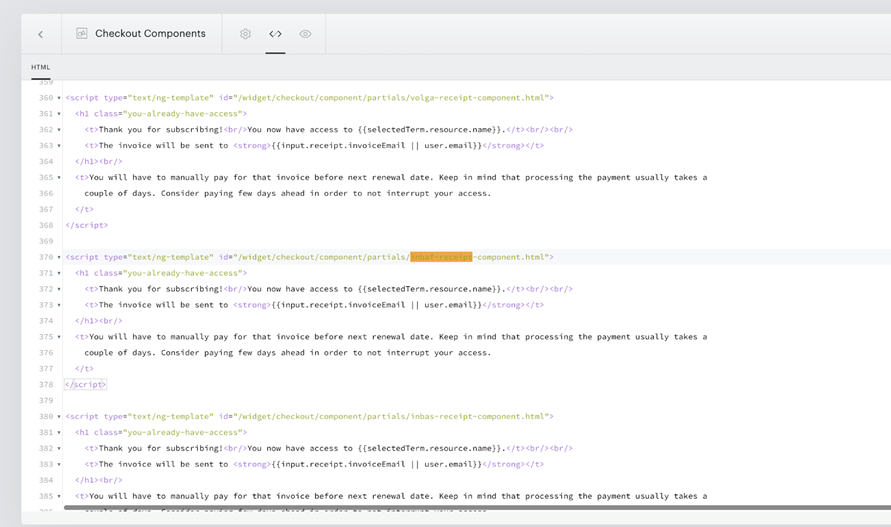
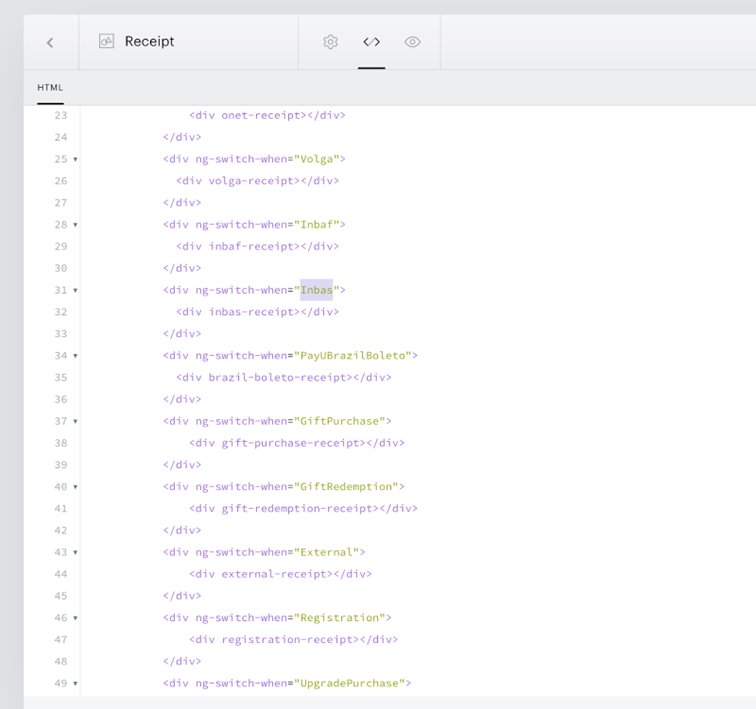
Please also make sure that your Receipt template loads the latest code; specific sections should appear in your Receipt template as per the below screenshot:
Payment Options
Support for two invoice payment options to enable the asynchronous integration flow has been added to the checkout and the Piano publisher dashboard. These two options have a configurable name for user presentation. There are two types:
-
Invoice Option 1
-
Invoice Option 2
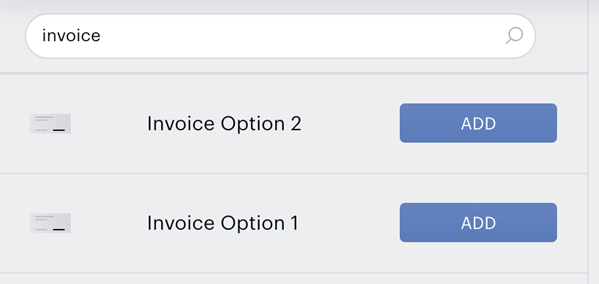
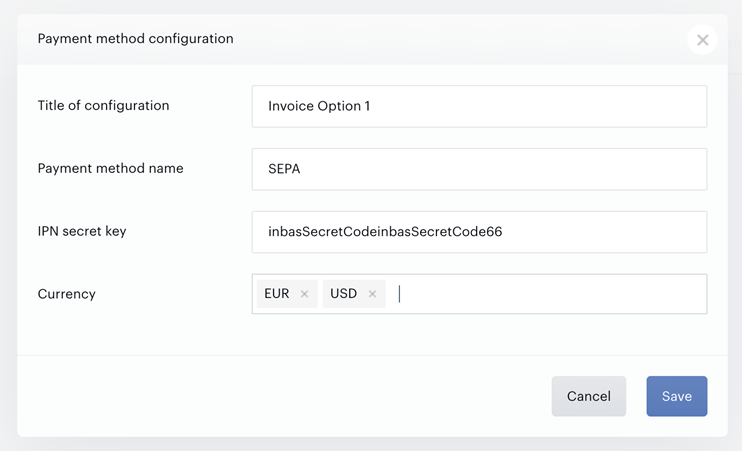
You can input further information into the Piano dashboard by clicking Edit Business→Payment Provider→Invoice Option 1 or Invoice Option 2 (Add New).
-
Title of Configuration - is the name for the method to be used within the platform
-
Payment method name - is the name which will be displayed on the frontend (e.g. in the Checkout, My Account, etc.)
-
IPN Secret key - a set of numbers, lowercase/uppercase letters, special characters, etc. with a minimal length of 32 (256bit)
-
Currency - select the desired currency
Checkout Flow
New Purchases
Below is a diagram of how a basic checkout flow would look on the frontend:
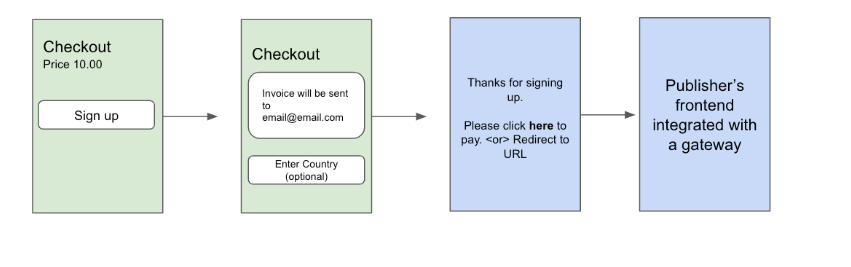
And here is a diagram of how the asynchronous integration works on the backend:
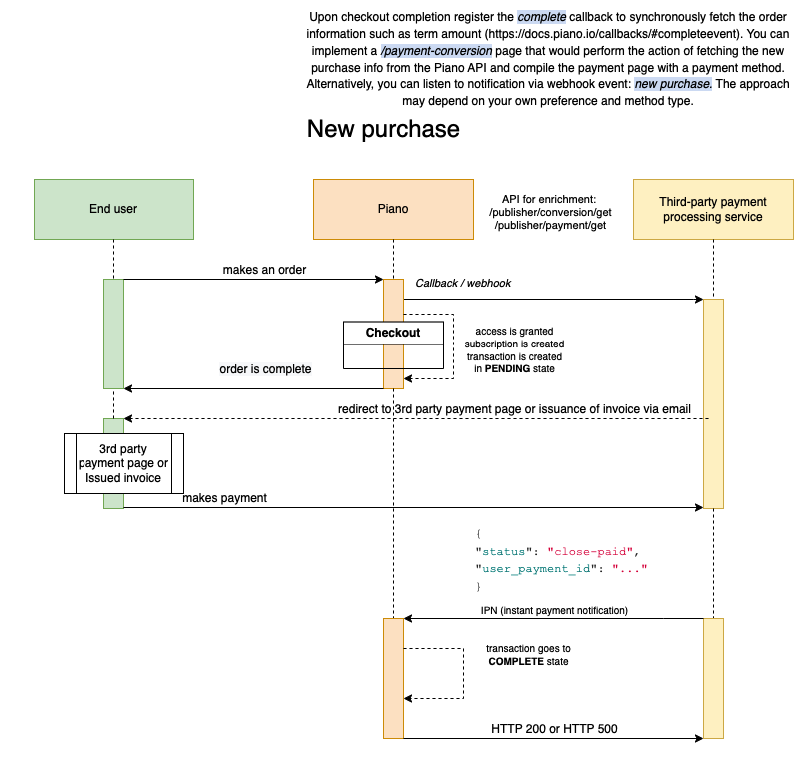
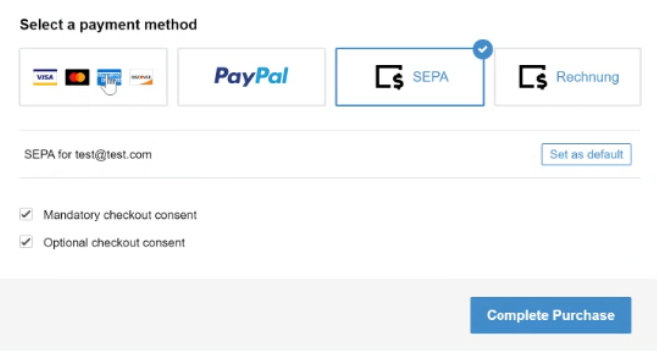
When checking out with the Invoice option, the default account email address is used. The invoice method is stored for future purchases as the default method.
After checkout with any of the invoice options, the transaction has a PENDING state.
For the final completion of the purchase, our system waits for the IPN (instant payment notification). Every payment provider has its own address:
-
Invoice Option 1 waits for the IPN on the PianoURL ending
/ipn/inbaf?aid=*** -
Invoice Option 2 waits for the IPN on the PianoURL ending
/ipn/inbas?aid=***
Note: Your Piano base URL depends on the environment where your application is located:
URL has aid as a required parameter.
So a full example URL address would look like this: https://buy-eu.piano.io/ipn/inbaf?aid=ABC123
The body should contain:
{"token":"eyJhbGciOiJIUzI1NiIsInR5cCI6IkpXVCJ9.eyJzdGF0dXMiOiJjbG9zZS1wYWlkIiwidXNlcl9wYXltZW50X2lkIjoiVVA2QkFVUks3RDNXIn0.QrEe5hgRmekpwARx6UCVTqJCQNLoGn-TLDIiyK5Wec8"}
The token is a simple JWT with payload:
{
    "status": "close-paid",
    "user_payment_id": "UP6BAURK7D3W"
}
Where status can be "close-paid" or "close-unpaid", and the user_payment_id is a transaction ID inside the Piano platform (for example UPE9BS501SYE).
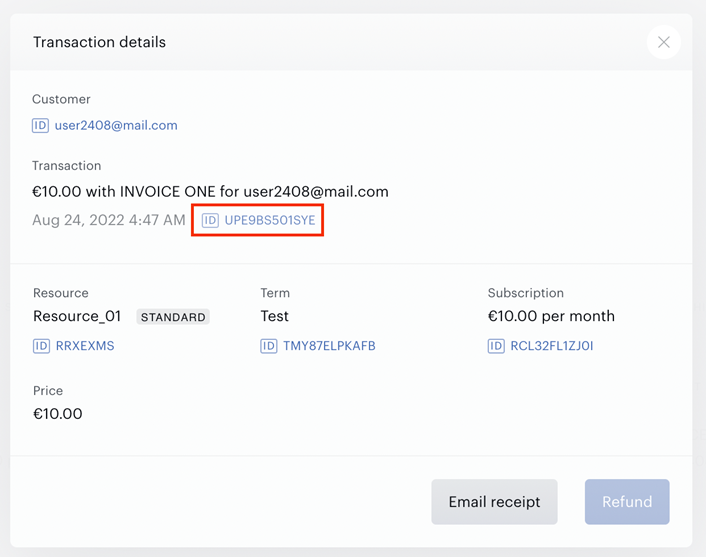
user_payment_id (string): The user payment ID can also be received via APIs:
IPN Notifications
Piano handles the Webhook sending and receiving of IPN messages, while the publisher needs to configure their system to receive (and decrypt) webhooks from Piano and send IPN messages back to Piano.
Piano expects 2 possible IPNs:
1. invoice is paid (positive):
{
"status": "close-paid",
"user_payment_id": "..."
}
Upon receipt of this notification, Piano marks the payment as completed, and the transaction goes to a COMPLETE state.
2. invoice is unpaid (negative):
{
"status": "close-unpaid",
"user_payment_id": "..."
}
Upon receipt of this notification, Piano revokes access, cancels the subscription, and marks the payment as canceled.
To transfer the notification JSON, we use https://jwt.io/. That means that you need to encode the notification JSON using BASE64 and append it with a sign. We use the IPN secret key from the Piano dashboard’s payment provider configuration to check the sign.
Messages should be signed with a 256-bit key (see the configuration "IPN secret key" field). To transfer notification JSON, we use JWT. That means you need to encode the notification JSON using BASE64 and append it with a sign. We use the IPN secret key to check the sign. The default JWT uses HMAC-SHA256 for signing, but the algorithm might be changed. To work with JWT, we use libraries, so we are not limited to HMAC-SHA256.
The full list for now is: HS256,HS384,HS512,PS256,PS384,PS512,RS256,RS384,RS512,ES256,ES256K,ES384,ES512,EdDSA.
Renewal Process
Below is a diagram of how the renewal process works on the backend:
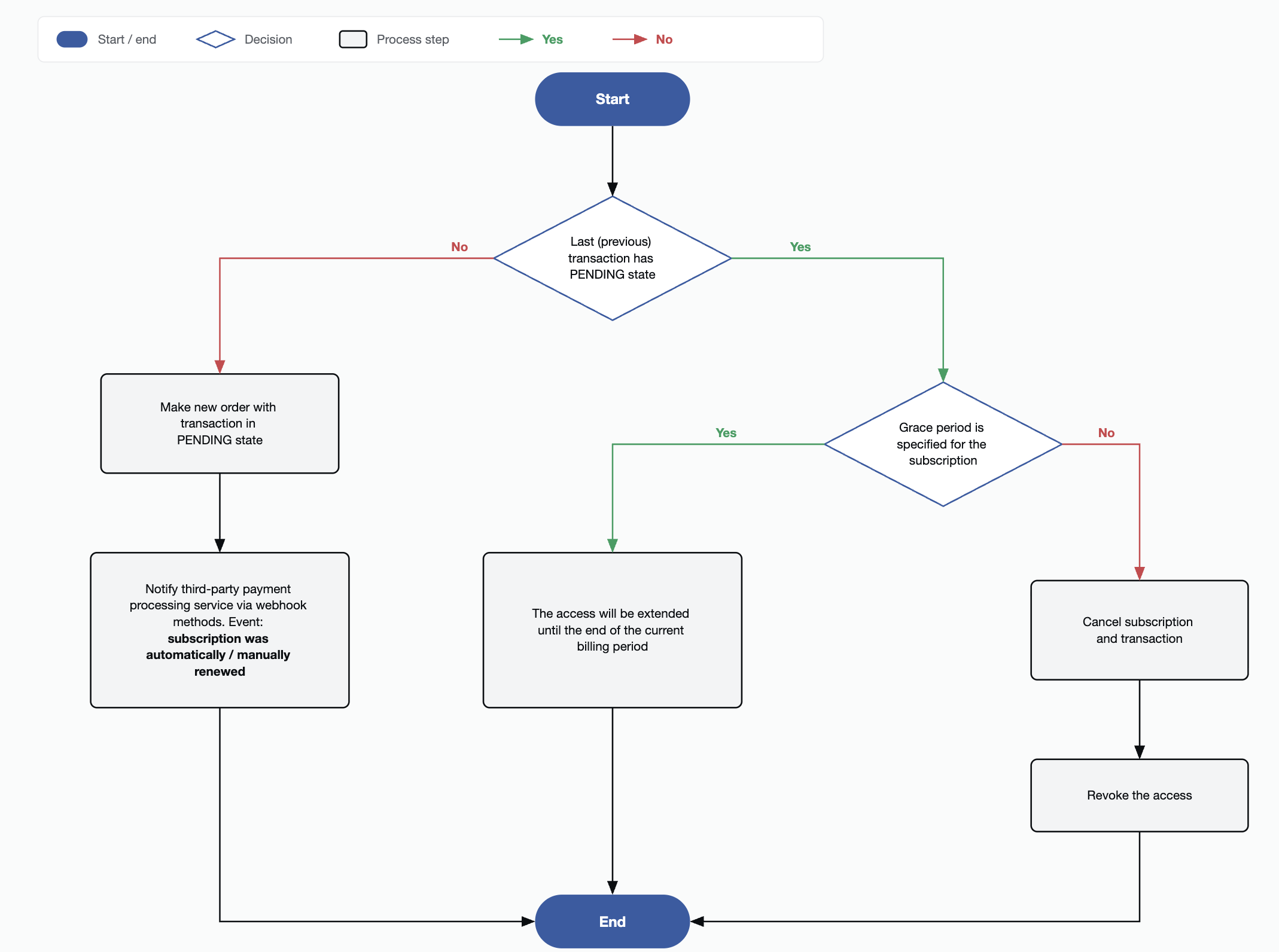
If the subscription payment has a PENDING state at the time of renewal, then such a subscription will be canceled during processing. If the subscription payment has a COMPLETE state, a new payment with a PENDING state will be created and the client will be notified via webhook with the type Subscription was automatically renewed.
Note: Transactions in the PENDING state can not be refunded.
Refer to our docs for the available webhooks and see also the section below.
Webhooks
A new webhook for refunds for full and partial refunds is now available. The Payment refunded webhook provides the following data:
-
payment ID,
-
refund amount,
-
AID,
-
UID,
-
subscription ID,
-
access ID
The newly implemented webhook is available for all payment methods (invoice, card, wallet methods, etc.).
Known Limitations
Please note that, as the method name indicates, Invoice Option methods are asynchronous payment methods, highly dependent on the 3rd party system to act and subject to your custom implementation. Therefore, it is not expected that a fully synchronous checkout process can be achieved by implementing these methods.
It is important to keep in mind that while Piano handles the payment method in reference to features used within its own system, due to a fully asynchronous flow, some features may not work the same as, for example, card payments via synchronous integrations, and the payment processing is dependent on your ability to process webhooks.
Please note that upon checkout completion with invoice methods, all relevant entities are created, such as subscription, access, and conversion, and they cannot be reversed, only cancelled. This means that if your integration approach reports a 'close-unpaid' IPN immediately or shortly after checkout completion, the transaction and subscription will be cancelled, and access revoked, creating a churned subscriber and exhausting the first-time customer status in relation to the term settings. This status is used for some of the features, such as the term setting "First-time customer only". It is recommended not to use closed-unpaid IPNs as a means of restarting the checkout; instead, retain the user payment in a pending status until the payment has been completed or terminally fails. This implies you may want to retarget the user in order to complete the payment rather than start the checkout from the beginning again. The same applies to the checkout abandonment segment if the user has proceeded to purchase via invoice method and completed Piano checkout.
Additionally, while adding/updating an invoice method in My Account, note that the actual payment method tokenization needs to happen using your own interface. Therefore, you may want to consider directing the user to your own interface for adding/updating payment methods in case tokenization is required and an actual invoice is not issued by your system for the user to pay offline (by sending your invoice via email or post).
Frequently Asked Questions (FAQ)
Product / Features
-
What are the limits of this integration - which Piano functions will not be available to us? See the feature support table above.
-
Comparing this integration with Braintree - are there any features that will not be available to us? Keep in mind that this is an asynchronous flow, so the payment is handled on your side; please refer to the feature support above.
-
Are there any integration boundaries that we should know and remember (because they will be independent of the development of the Piano platform)? There are no specific boundaries; we will want to ensure new features are supported for this method, provided they can be. But in comparison with Braintree, this async flow grants access to the user immediately.
-
Does the integration allow the use of upgrades? Yes, upgrades work, but two transactions in pending status are created.
-
Will promo code and trial periods work properly via Piano by the book? Yes.
-
Will gift deals work properly? Gift terms are also supported.
-
Will Site licensing be available? Yes.
Payment methods
-
Does the integration allow us to add any payment method (handled by our side) without the need for Piano support? There are currently only two options for async/ invoice methods, but they are flexible; depending on your integration, you could potentially handle multiple methods under the single method option.
Technical / Documentation
-
Are the mentioned webhooks available in the dashboard (Manage → Webhooks)? Yes.
-
Can we add more invoice payment options? Not immediately as it requires development, but we can consider adding more options in the future, based on gathered feedback across clients.
-
Can we separate the Payment functionality from the Piano platform? We want to handle the payment process on our site and send to Piano all the needed information. - Yes, to an extent. In Piano, with these methods we’re not accepting sensitive payment information; this will live on your end: the subscription date, transaction statuses, and subscriber data. This is all in Piano; Piano will also run its renewal job and trigger webhooks for you to act on running payment on your end.
Analytics / Data
-
Will all current data on transactions and purchase history be available in the Piano panel (for us) and for the user (in the My Account)? Yes, the payment method will be named whatever you name it in your configuration.
-
Will the data in the generated (transactional) reports be unchanged? Yes, but some transactional data will not be stored by us, since the transaction will happen outside (referring primarily to an external transaction ID, etc). We have also introduced a new transaction status: Pending.
Migration
-
How do I migrate to invoice options 1 or 2 from an existing provider or method? Follow the steps below to migrate active subscriptions from an existing payment provider to the Piano invoice payment method (option 1 or 2):
1. Generate a list of active subscriptions. Create a list of all active subscriptions using the payment method that is to be migrated.
2. Enable the invoice option. Enable invoice option 1 or 2 in your Piano configuration (under Edit Business → Payment Provider).
3. Prepare the import file. Request migration support and populate the import file as follows:ext_payment_id(token) = subscriber email
ext_customer_id= subscriber email4. Import payment methods. Request the import to be processed with the import file. This will create payment methods (invoice payment option 1 or 2 as configured) per subscriber and generate a
user_payment_idfor each.
5. Map payment identifiers. The generateduser_payment_idvalues should be used as the key identifier to link to the previous payment method token and/or external IDs for further webhook processing.
6. Update active subscriptions. Update all active subscriptions to use the new invoice payment method. This can be done via the Piano API or by requesting Piano support to update them on your behalf.
7. Plan the migration timing. Consider the period of time during which the migration takes place. During the transition window, some subscriptions may still be on the old payment method while others are moved to the new one. Plan accordingly to avoid missed renewals or duplicate charges.