
Zlick is a mobile payments provider that charges through the customer's telecom operator. Piano supports it in Estonia, Latvia, Lithuania, Slovenia, and Finland, where it is available to early adopters, and renewals are supported. Mobile payments carry a 50 EUR limit per transaction, so price your offers accordingly, or show Zlick only to specific segments using checkout flows.
Before you start, you need the client token and client secret from your Zlick account, and your system templates have to be updated before Zlick will appear in checkout.
Limitations
Mobile payments have a €50 transaction limit. Consider this Zlick restriction when configuring offers, and target Zlick users with specific checkout flows for selected segments.
Piano automatically identifies each Zlick charge as either an initial payment (the first charge of a new subscription, one-off, or gift completed at checkout) or a recurring payment (automatic renewals, manual renewals triggered by the publisher or end user, and upgrades). This distinction is sent to Zlick with every payment request and requires no configuration on the Piano side. Depending on your Zlick and telecom operator setup, it may result in different pricing for initial versus renewal charges, and in different SMS notification behavior per payment type.
Merchant Requirements
To ensure the latest code is loaded in the Checkout and MyAccount and to enable Zlick, system template changes are required. There are a few ways to update your templates:
-
The easiest is to revert them to the default version if you haven’t customized the templates.
-
If you did, then you can use the Compare code feature and compare the code between the default version and your current version, and carry over any new code line by line.
-
Alternatively, you can follow the scripts below and carry over the latest code line by line to your system templates.
In the Payment Components template, find the string <script type="text/ng-template" id="/frontend/providers/common/credit-card-text-input.html"> and change it to:
<script type="text/ng-template" id="/frontend/providers/common/credit-card-text-input.html">
    <div class="cc-field-outer-wrap">
        <div class="cc-field-outer-wrap__left-placeholder">
            {{ i18nPlaceholder || placeholder }}
        </div>
        <div class="cc-field-outer-wrap__field cc-field" ng-class="getFieldClass()">
            <label ng-if="icon || iconClass" class="cc-field__icon" ng-class="getIconClass()"></label>
            <div class="cc-field__input-wrap" ng-class="{'cc-field__input-wrap--no-icon': !(icon || iconClass)}">
                <input type="text"
                       class="cc-field__input flat {{className}} fs-block"
                       ng-class="{'cc-field__input--readonly': readonly}"
                       ng-model="text"
                       placeholder="{{ i18nPlaceholder || placeholder }}"
                       maxlength="{{ maxlength }}"
                       minlength="{{ minlength }}"
                       pn-min-length
                       ng-readonly="readonly"
                       ng-required="required"
                       ng-disabled="disabled"
                       ng-change="onChangeCallback(onChange)"
                       ng-enter="onEnter()"
                       validation-rule="{{ validationRule }}"
                       format="{{ formatType }}"
                />
            </div>
        </div>
    </div>
</script>
In the same template, find the string <script type="text/ng-template" id="/frontend/providers/common/credit-card-phone-number.html"> and change it to:
<script type="text/ng-template" id="/frontend/providers/common/credit-card-phone-number.html">
    <cc-text-input i18n-placeholder="{{'Phone number' | t}}"
                   autofocus="autofocus"
                   ng-readonly="readonly"
                   ng-required="required"
                   ng-disabled="disabled"
                   ng-model="text"
                   class="cc-field-wrap fs-block"
                   class-name="className"
                   on-change="onChange"
                   on-enter="onEnter"
                   name="name"
                   validation-rule="validationRule"
                   icon="'phone-number'"
                   data-e2e="cc_phone"
                   valid="valid"
    ></cc-text-input>
</script>
In the same template, find <div ng-if="state.newUpi" class="zlick-new-upi-wrapper"> and replace it with:
<div ng-if="state.newUpi" class="zlick-new-upi-wrapper">
  <div class="zlick-table-wrapper zlick-table-wrapper--new-upi">
    <div class="zlick-table-left-column">
      <div class="zlick-text-static">{{fields.phone_number.value}}</div>
    </div>
    <div ng-if="!readonly" class="zlick-table-right-column">
      <div class="zlick-right-aligned" ng-click="cancelNewAccount()"><t>Cancel</t></div>
    </div>
  </div>
</div>
The My Account Wallet Components template should contain the following code after any <script> element:
<script type="text/ng-template" id="/frontend/providers/components/zlick/my_account/component.shtml">
<div class="zlick-my-account-form">
  <my-account-billing-country></my-account-billing-country>
  <div>
    <div class="zlick-title">
      <h4>
        <t>Your phone number</t>
      </h4>
    </div>
    <dynamic-base-inputs-component name="providerName" readonly="readonly"
                                   data="data"></dynamic-base-inputs-component>
    <div error-section
         errors="formErrors"
         heading="{{'Couldn\'t submit issue' | t}}"></div>
  </div>
</div>

</script>
Supported Countries
If you are using Zlick, your customers must be in the following countries:
-
Estonia
-
Lithuania
-
Latvia
-
Slovenia
-
Finland (early adopters)
Supported Currency
Piano supports the following Zlick supported currencies:
|
Supported Currencies |
|||||||
|---|---|---|---|---|---|---|---|
|
EUR |
PLN* |
||||||
*Please check back with Zlick if processing payments in this currency has already been implemented on their end.
Note, that Piano may support only selected currencies available in the payment providers dashboard.
Supported Payment Methods
Piano supports the following payment methods for this payment provider:
|
Payment method name |
Are renewals supported? |
||||||||||||
|---|---|---|---|---|---|---|---|---|---|---|---|---|---|
|
Telecom Billing (Mobile payment) |
Yes |
Supported Features and Functionality
|
Feature/Functionality |
Supported? |
|---|---|
|
Refunds |
Yes (Full only) |
|
Apply Terms Wizard |
No |
|
My Account - Add payment method |
Yes |
|
My Account - Edit payment method |
No |
|
My Account - Delete payment method |
Yes |
|
Publisher dashboard - Add payment method |
Yes |
|
Publisher dashboard - Edit payment method |
No |
|
Publisher dashboard - Delete payment method |
Yes |
|
Tax Providers and Types |
TaxJar / Avalara |
|
Transaction descriptors |
None |
|
Frictionless |
No |
|
3DS / SCA |
N/A* |
|
Account Updater |
No |
|
Fraud prevention |
N/A |
|
Passive churn prevention |
Yes - Standard support |
|
Payment token import support |
Yes** |
*Since this is a mobile payment method, not a card payment it’s not subject to 3DS.
**For more information about the payment token import please visit this link.
How to implement Zlick conditional display based on term value?
To implement the value limit for Zlick to be shown / not shown in the checkout, you can implement the following logic in Piano templates.
Go to Manage → Templates → Payment Components template and find the following component: <script type="text/ng-template" id="/widget/checkout/component/partials/payment-method-selector-component.html">
Then alter the code as shown below. Note, that on line 27, you can change the value 7 to the desired value of the threshold.
<script type="text/ng-template" id="/widget/checkout/component/partials/payment-method-selector-component.html">
<div desktop>
<h4 class="select-payment-options">
<t>Select a payment method</t>
</h4>
</div>
<div mobile>
<h4 class="select-payment-options--mobile">
<t>Select a payment method</t>
</h4>
</div>
<div class="payment-options-wrapper-new">
<div class="payment-methods-container">
<div ng-repeat="pm in paymentMethods" class="payment-method-tile" ng-class="{'payment-method-selected': pm.selected}" ng-hide="($parent.selectedTerm.chargeAmount > 7) && ($parent.selectedTerm.chargeCurrency==='EUR') && pm.identifier==='zlick'">
<a ng-click="selectPaymentMethod(pm)" class="payment-button {{pm.identifier}}">
<div class="item payment-method-items-inner-container">
<div class="payment-method-logo {{pm.identifier}} {{getCurrencyClass()}}"></div>
<div ng-if="pm.customTitle" class="payment-method-title">
{{pm.customTitle}}
</div>
</div>
</a>
<div class="payment-method-selection-icon"></div>
</div>
</div>
</div>
</script>
How to integrate Zlick with Piano
To begin inputting your credentials, navigate to Edit business → Payment provider → Zlick → ADD.
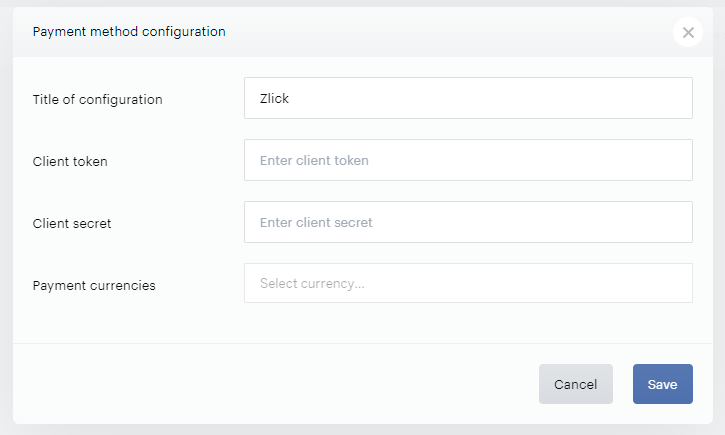
-
Title: The title of the payment integration
-
Client Token: The Client token from your Zlick account.
-
Client Secret: Your Zlick client secret.
-
Currencies: The currencies you need to support out of the available options: EUR and PLN
If you don’t have the test account, request your development account by emailing support@zlick.it.