
Overview
Changing payment providers in Piano is primarily a payment token migration. Subscriber accounts, entitlements, and subscription records remain in Piano. What changes is the stored payment token used to charge an active subscription.
This guide walks you through the process. New transactions can route through the new provider as soon as Phases 1 and 2 are complete. Migrating existing subscribers (Phase 3) is optional and can be scheduled separately.
If token transfer between providers isn't feasible for your specific providers or account setup, existing customers may need to re-enter their payment details. This can increase churn. Confirm token portability and the required conversion approach with both your current and new payment providers early in the project.
Key Points:
-
New subscriptions will immediately use the new provider
-
Existing subscribers continue with the current provider until migrated
-
Migration of existing subscribers is optional and can be done separately
Process Phases
Phase 1: Enable New Payment Provider
Add and activate your new payment provider for all new transactions.
Phase 2: Hide Previous Provider
Remove the old provider from checkout options.
Phase 3: Migrate Existing Subscribers (Optional)
Transfer existing subscriber payment tokens to the new provider.
Phase 1: Enable New Payment Provider
Step 1: Prepare Your Provider Account
Before starting configuration:
-
Create or finalize your merchant account with the new payment provider
-
Obtain required API keys and credentials
Step 2: Add Provider in Piano
Configuration steps:
-
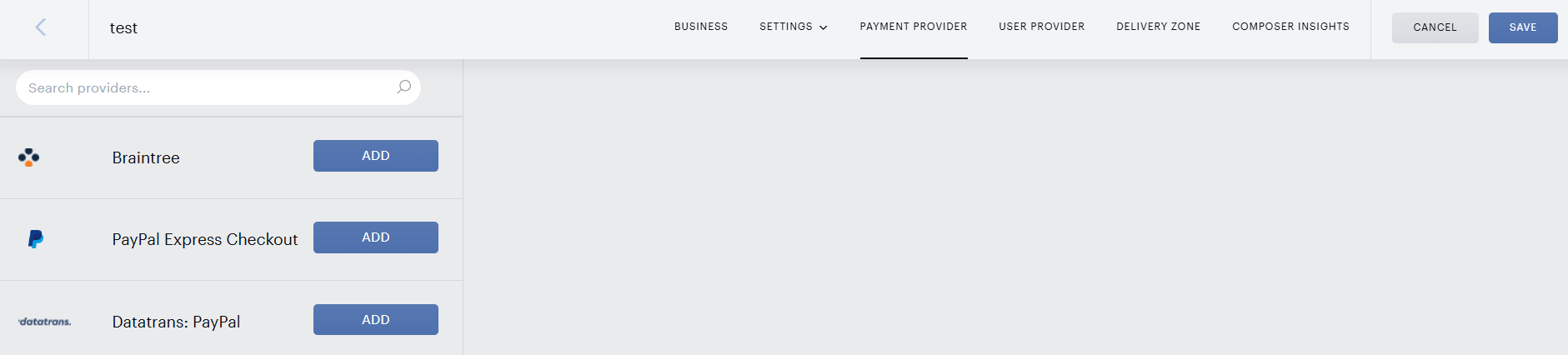
Go to Edit Business → Payment Provider
-
Click Add next to your desired Payment Provider
-
Enter credentials from your new provider
-
Configure settings, including:
-
Supported currencies
-
Redirect URLs
-
Test this process in Sandbox first using the provider's test credentials.
Step 3: Test the New Provider
Required testing in Sandbox/QA:
-
Run test payments in Sandbox
-
Verify:
-
Credit card fields load correctly
-
Checkout buttons and redirects work
-
My Account functionality for adding and editing payment methods
-
Payments appear in transaction reporting
-
Step 4: Activate for Production
After successful testing:
-
Add the new provider to your production application using your live credentials
-
Enable for live processing
-
Confirm provider is available for subscriptions
Result: Users now may use the new payment provider for new subscriptions.
Step 5: Validate Production Processing
Perform a controlled production test:
-
Complete a real transaction
-
Confirm:
-
Successful authorization and confirmation
-
My Account functionality for adding and editing payment methods
-
Transaction appears in reporting
-
Correct provider is used
-
Phase 2: Hide Previous Payment Provider
Step 1: Access Provider Settings
Navigate to Edit Business → Payment Provider
Step 2: Hide the Old Provider
-
Find your previous provider
-
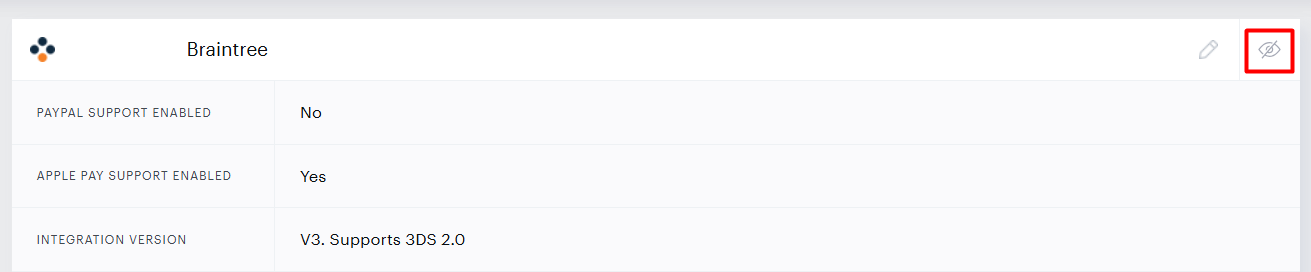
Use the crossed-eye icon to hide the provider from both Checkout and My Account
-
Save changes
Step 3: Verify Checkout Display
-
Refresh checkout page
-
Refresh My Account page
-
Test in incognito/private mode
-
Confirm only the new provider appears
Step 4: Monitor New Transactions
Review live activity:
-
Validate all new payments use the new provider
Phase 3: Migrate Existing Subscribers (Optional)
Organizations that choose to move existing subscribers to the new payment provider can schedule payment token migration at a later time. This process is entirely optional and does not affect launching the new provider for new transactions. During this phase, existing vault tokens are securely exchanged between the current and new payment providers, then imported and mapped in Piano so that future renewals are processed through the new provider without requiring any customer action.
Process Overview
Token migration involves:
-
Exporting tokens from current provider
-
Converting tokens to the new provider’s required format
-
Importing into Piano
-
Validation and reconciliation
Roles and Responsibilities
Client:
-
Owns timing, scope, and approvals
-
Coordinates between providers
-
Provides subscriber mapping keys
Current Payment Provider:
-
Exports existing tokens and card metadata according to the agreed schema
New Payment Provider:
-
Converts and issues new tokens
-
Validates token usability
Piano:
-
Imports new tokens
-
Maps to subscriber accounts
-
Confirms data integrity and readiness for future renewals
Step 1: Plan Data Migration
Data Validation Protocol:
-
Define reconciliation rules (record counts, success/failure thresholds)
-
Agree on file schema and required identifier
-
Establish validation checksums
Timeline Alignment:
-
Choose migration cohorts and windows
-
Align provider SLAs for export/conversion/import
-
Establish monitoring contacts for all parties
Token Migration Process:
-
Current provider exports tokens securely
-
New provider converts and issues new tokens
Step 2: Sandbox Migration (Optional)
Initial Testing:
-
Generate sample token file with limited data.
Details on the file format are provided by your Piano representative or Piano Support.
-
Import to staging environment
-
Verify one-to-one mapping between accounts and payment methods
-
Execute non-monetary verifications
Step 3: Production Migration
File Structure Validation:
-
Confirm header names, field ordering, encoding, delimiters
-
Provide file-level checksum and record count
-
Confirm secure transfer endpoints
Migration Execution:
-
Piano imports tokens programmatically
-
Updates payment methods per subscriber
-
Performs final data integrity checks
-
Reconciles imported vs. file counts
Post-Migration Monitoring:
-
Monitor first renewal cycle for authorization rate, soft declines, and error patterns
-
Rollback plan: any records failing validation revert to old provider for one cycle or trigger customer
outreach