For clients using Braintree as their payment provider, Piano supports payment through Apple Pay. Apple Pay allows users to pay online by simply using their fingerprint to authorize a payment to a site.
If you are a Subscription Management + Billing customer, please contact the Piano support team to first enable Apple Pay on your application. Please note that mobile users can only take advantage of Apple Pay if they have an iPhone 6 or higher and are browsing your site using Safari. If a user wishes to use Apple Pay on their Mac, they must have macOS 10.12 Sierra installed and have their iPhone present during the transaction as touch ID is required for payment.
The user flow is as follows:
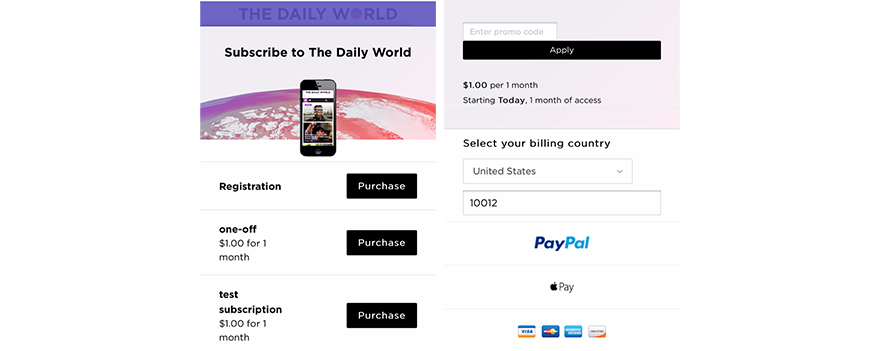
The user will select the desired subscription option and be brought to the payment screen. From there, the user will have the option to select PayPal, Apple Pay, or credit card:
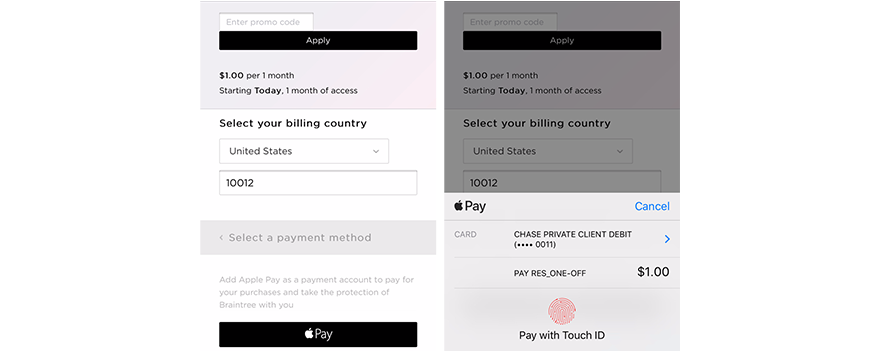
If the user selects Apple Pay, they will be prompted to pay with touchID:
A verification screen will then appear and the user will click "Complete Purchase" to complete the purchase: