It is a common situation where you want to track your button clicks, get them into Composer reporting, and have those clicks named (e.g., button-month) — especially when you have multiple buttons or clickable elements in a template and you want to distinguish them.
In Classic templates, this is done by adding an external event to the button with parameters.
In Lightweight templates, it depends on whether you use the PianoPrimaryButton (or a similar Piano component) or not.
If You Are Using a Piano Component
Add the externalEventName attribute directly to the component:
<PianoPrimaryButton externalEventName="button-month">
  Subscribe
</PianoPrimaryButton>
If you need to add params to the external event, use the externalEventParams attribute:
<PianoPrimaryButton
  externalEventName="button-month"
  externalEventParams={{ myParam: 123 }}
>
  Subscribe
</PianoPrimaryButton>
If You Are Not Using a Piano Component
If you use plain HTML buttons instead, wrap the element with PianoExternalEvent:
<PianoExternalEvent name="button-month" params={{ param1: 'value' }}>
  <button>Subscribe</button>
</PianoExternalEvent>
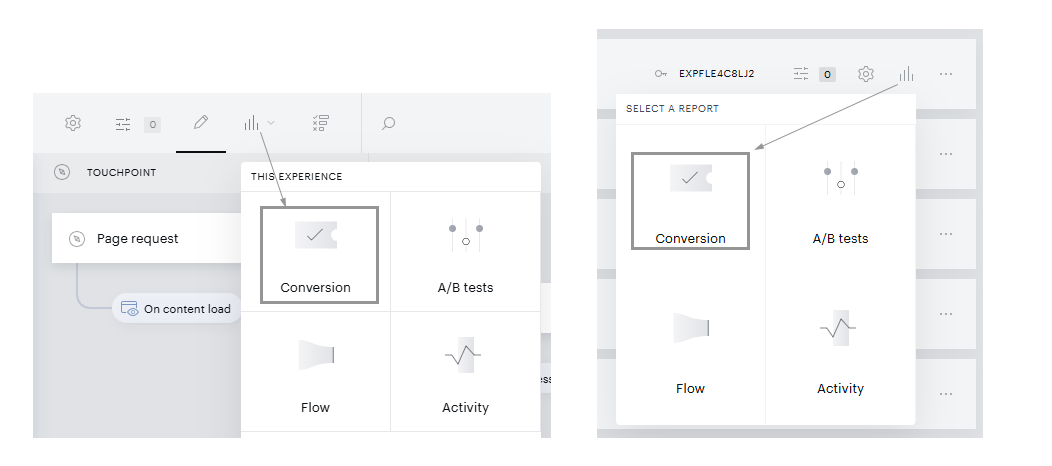
Viewing Click Data in Reporting
You can see tracked clicks in the Composer Conversion Report at the experience level, showing the clicks recorded within a particular experience. The image below shows how to access the report.