Out of the box, it's not possible to show multiple offers in one template.
If you'd like to show different sections with multiple terms in one template, and hide them on a button click, you can apply the below pseudo code to your Piano offer template.
It shows 3 buttons and after clicking on each of them it rolls down 3 additional CTA buttons. Each button then represents one term and if you click on these buttons, the checkout will start with the specific term.
<button onclick="myFunction('first')">First term section 1</button>
<button onclick="myFunction('second')">Second term section 2</button>
<button onclick="myFunction('third')">Third term section 3</button>
<div id="first" style="display:none;">
  <button type="button" class="pn-offer-grid__subscribe pn-boilerplate__button unbutton" ng-click="startCheckout(TERMID1)"> Term name 1</button>
  <button type="button" class="pn-offer-grid__subscribe pn-boilerplate__button unbutton" ng-click="startCheckout(TERMID2)"> Term name 2</button>
  <button type="button" class="pn-offer-grid__subscribe pn-boilerplate__button unbutton" ng-click="startCheckout(TERMID3)"> Term name 3</button>
</div>
<div id="second" style="display:none;">
  <button type="button" class="pn-offer-grid__subscribe pn-boilerplate__button unbutton" ng-click="startCheckout(TERMID4)"> Term name 4</button>
  <button type="button" class="pn-offer-grid__subscribe pn-boilerplate__button unbutton" ng-click="startCheckout(TERMID5)"> Term name 5</button>
  <button type="button" class="pn-offer-grid__subscribe pn-boilerplate__button unbutton" ng-click="startCheckout(TERMID6)"> Term name 6</button>
</div>
<div id="third" style="display:none;">
  <button type="button" ng-click="startCheckout(TERMID7)"> Term name 7</button>
  <button type="button" ng-click="startCheckout(TERMID8)"> Term name 8</button>
  <button type="button" ng-click="startCheckout(TERMID9)"> Term name 9</button>
</div>
<script>
function myFunction(elementId) {
  document.getElementById('first').style.display = "none";
  document.getElementById('second').style.display = "none";
  document.getElementById('third').style.display = "none";
   var x = document.getElementById(elementId);
    if (x.style.display === "none") {
      x.style.display = "block";
    } else {
      x.style.display = "none";
    }
}
</script>
The values for TERMID1 - 9 need to be replaced with the actual term IDs from your offer. All of the terms need to be placed in one offer.
Alternatively, you can replace startCheckout('TERMID1') with startCheckout(terms[0].termId), startCheckout('TERMID2') with startCheckout(terms[1].termId) and so on.
Please note, that styling the template might require some advanced HTML and CSS knowledge.
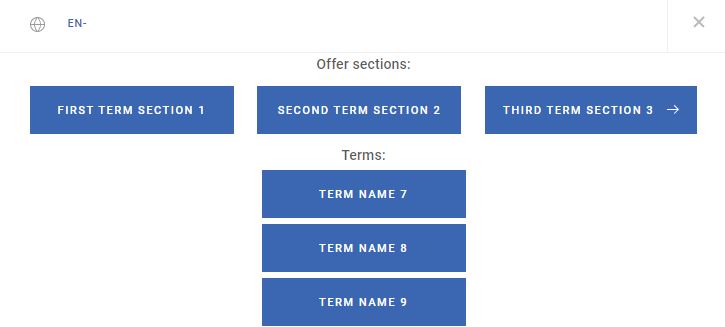
Please see below for a simple example of how this would look like. After the click on the first CTA button, the first 3 terms are displayed:
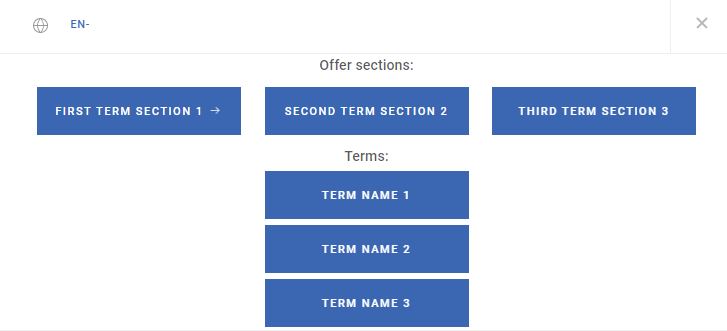
After a click on the second CTA button, the second set of terms is displayed:
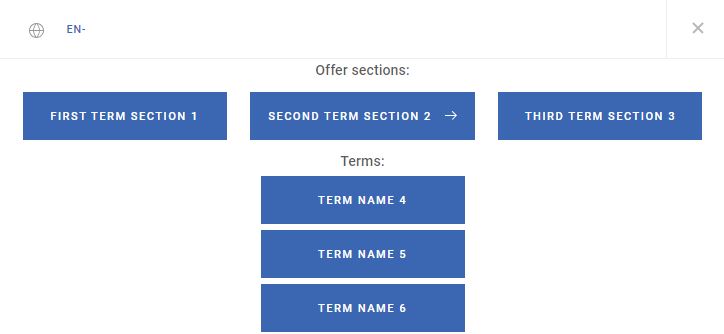
And after clicking on the last CTA button, the final 3 terms are displayed: