
We offer the following management operations for updating keywords in bulk:
-
Update Bid - which updates the bids of the selected keywords.
-
Update Position - which updates the position of the selected keywords by changing the bid amount to an appropriate value.
-
Activate - which activates the selected keywords.
-
Deactivate - which deactivates the selected keywords.
-
Set as Broad Match - which sets the selected keywords as broad matches.
-
Set as Exact Match - which sets the selected keywords as exact matches.
-
Set as Phrase Match - which sets the selected keywords as phrase matches.
-
Set as Negative Match - which sets the selected keywords as negative matches.
-
Delete - which deletes the selected keywords.
When deactivating keywords, you will still continue to receive clicks in the campaign or ads stats pages until the users stop clicking old ads they got served before you deactivated the keywords. This is called "late click event", and can go on for days. The actual Deactivation of keywords will take of the order 60-120 minutes to kick in depending on when in the indexing cycle of the adindex you do the change.
Selecting Keywords to Perform Operations Upon
In order to perform any of the available bulk operations, you must first select the keywords you wish to apply an operation upon by clicking on the checkbox at the beginning of its row in the keywords table like so:
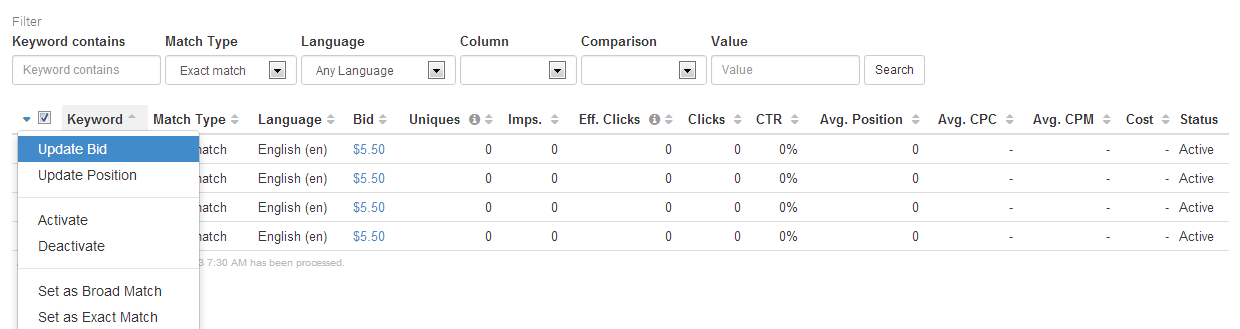
Selecting and deselecting all the rows at once is also possible by simply clicking the checkbox in the table header.
Furthermore, clicking on a checkbox while holding down the shift key will select all the rows between the just-selected checkbox and the previously selected one. If that doesn't make sense, just try it – hold down the shift key while clicking the checkboxes and you'll come to see how quickly many rows can be selected.
Applying an Operation Upon the Selected Keywords
Once some keywords have been selected, you can apply operations upon them by clicking on the appropriate operation in the drop-down that appears when clicking on the arrow in the table header. The following screenshot illustrates what happens:
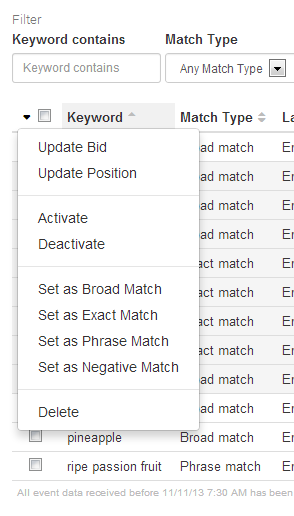
Once the arrow has been clicked, the drop down will appear and you can apply the operation upon the selected keywords simply by clicking on it.